
Hosted Buyers
The whole programme end to end — participants, matching, meetings, publishing and itineraries.
Who this is for: whoever runs the buyer programme for an event — an organiser, a matchmaking lead, an exhibitor-relations manager. No technical knowledge is assumed.
What it does: pairs your hosted buyers with the exhibitors most worth their time, places those meetings on a timetable, and sends each side their itinerary.
How long it takes: about twenty minutes of setup, plus however long you want to spend reviewing the pairings before you publish them.
This is the shareable copy of the guide built into the Command Centre. In the product it lives behind the Guide button in the Hosted Buyers page header, on all three steps — the same walkthrough, the same screenshots, opening at the section for the step you are on. Use that version if you have access to it; this page is the same guide, for anyone without a Command Centre login.
Every screenshot here is a real screen. This guide was written by walking the whole flow end to end in a browser on a demo event (10 hosted buyers, 13 exhibitors) and photographing each state as it happened — including the failures. Nothing is a mock-up. Your numbers will differ; the screens will not.
Where it lives
Command Centre → pick your event → GROW → Hosted Buyers (item 10 in the left rail).
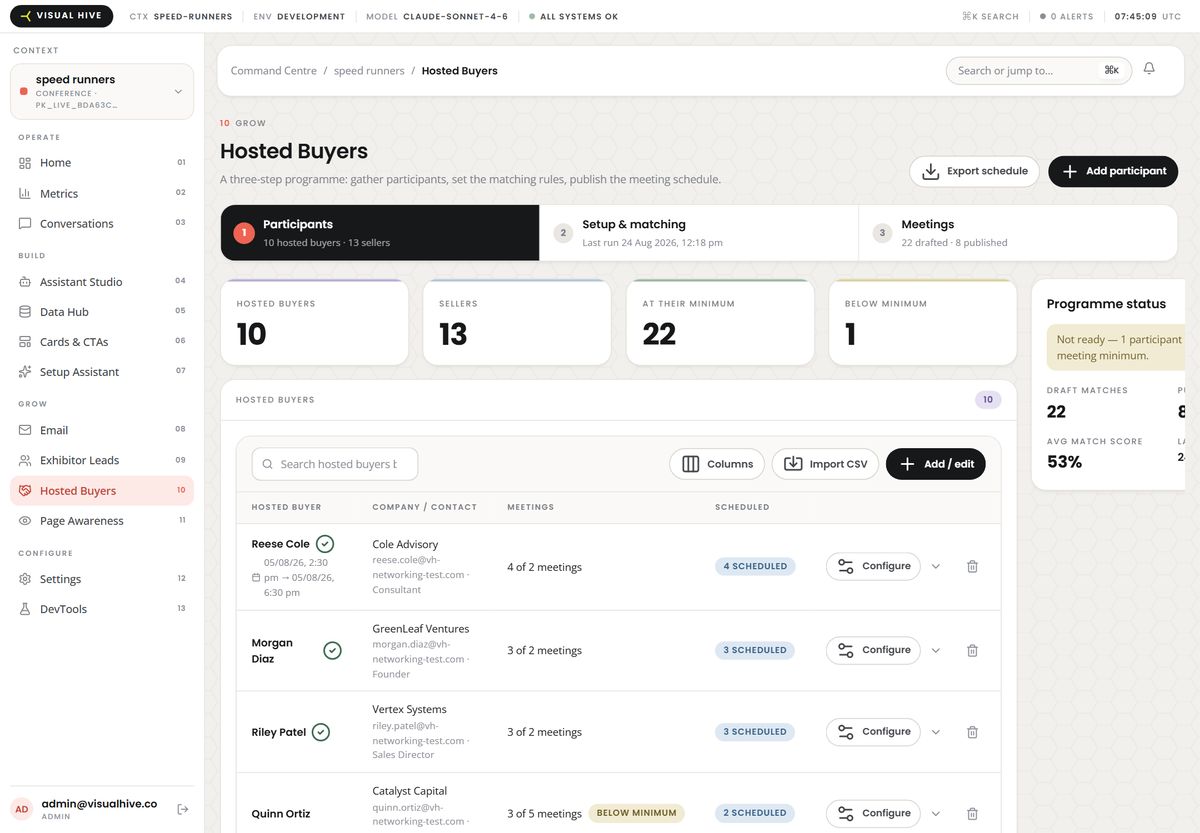
The page is three steps, and the stepper at the top is both a map and a set of links — every step is clickable at any time, in any order. Going back never loses anything.

Each step carries its own live summary, so the stepper answers "where am I up to?" without you opening anything:
| Step | What its subtitle tells you |
|---|---|
| 1 Participants | 10 hosted buyers · 13 sellers — or No participants yet |
| 2 Setup & matching | Last run 24 Aug 2026, 12:18 — or Not run yet |
| 3 Meetings | 29 drafted · 2 published — or No meetings yet |
Two buttons sit in the page header, on all three steps:
- Export schedule — downloads every meeting as a CSV: hosted buyer, company, exhibitor, date/time, location, status. Removed meetings are left out. (Verified: produces a real file, one row per meeting, with a header row.)
- Add participant — a shortcut that jumps to Step 1 and opens the hosted-buyer picker.
Both are greyed out until a programme exists.
Step 0 — Create the programme
The first time you open Hosted Buyers for an event, there is nothing there yet.
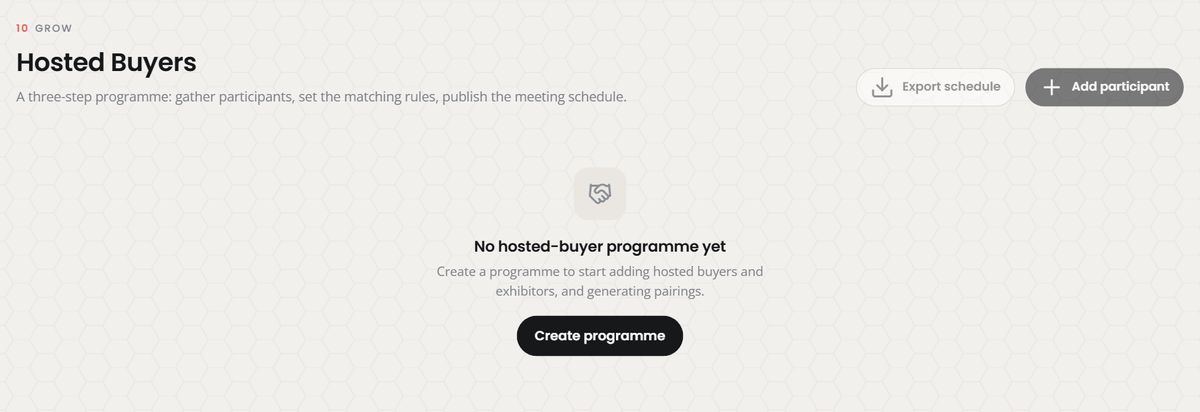
Press Create programme. That is the whole of step 0 — the programme starts empty, in
draft, with sensible defaults you will adjust in Step 2.
If it fails, you get a message saying so and the empty state stays put. Nothing was created, so pressing the button again is safe.
⚠️ Watch out. This same "No hosted-buyer programme yet" screen also appears if the Command Centre temporarily cannot reach the service behind it — so on a bad connection it can appear for an event that does have a programme. Reload before pressing Create again.
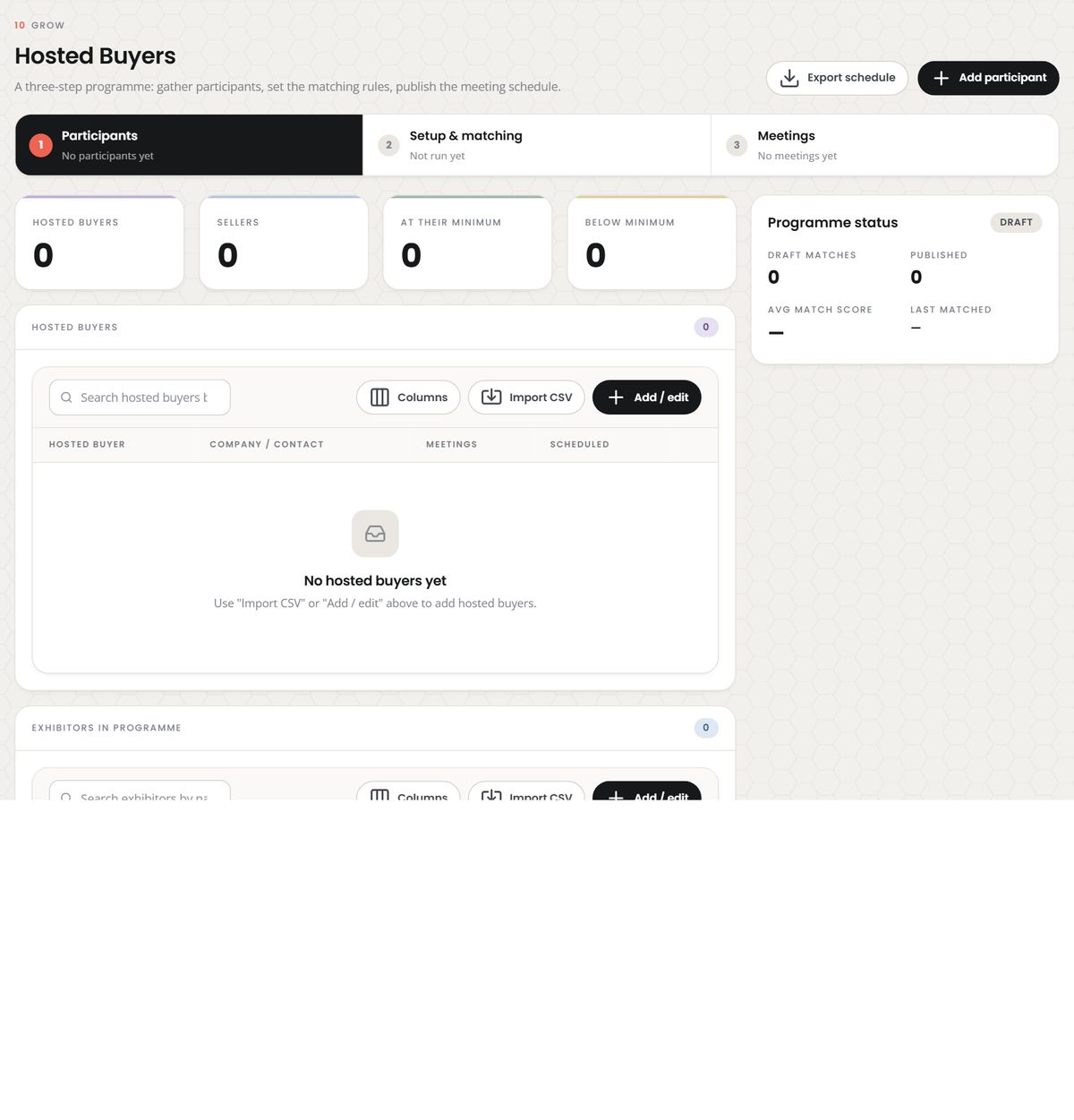
Once the programme exists, all three steps unlock — still empty, but ready:
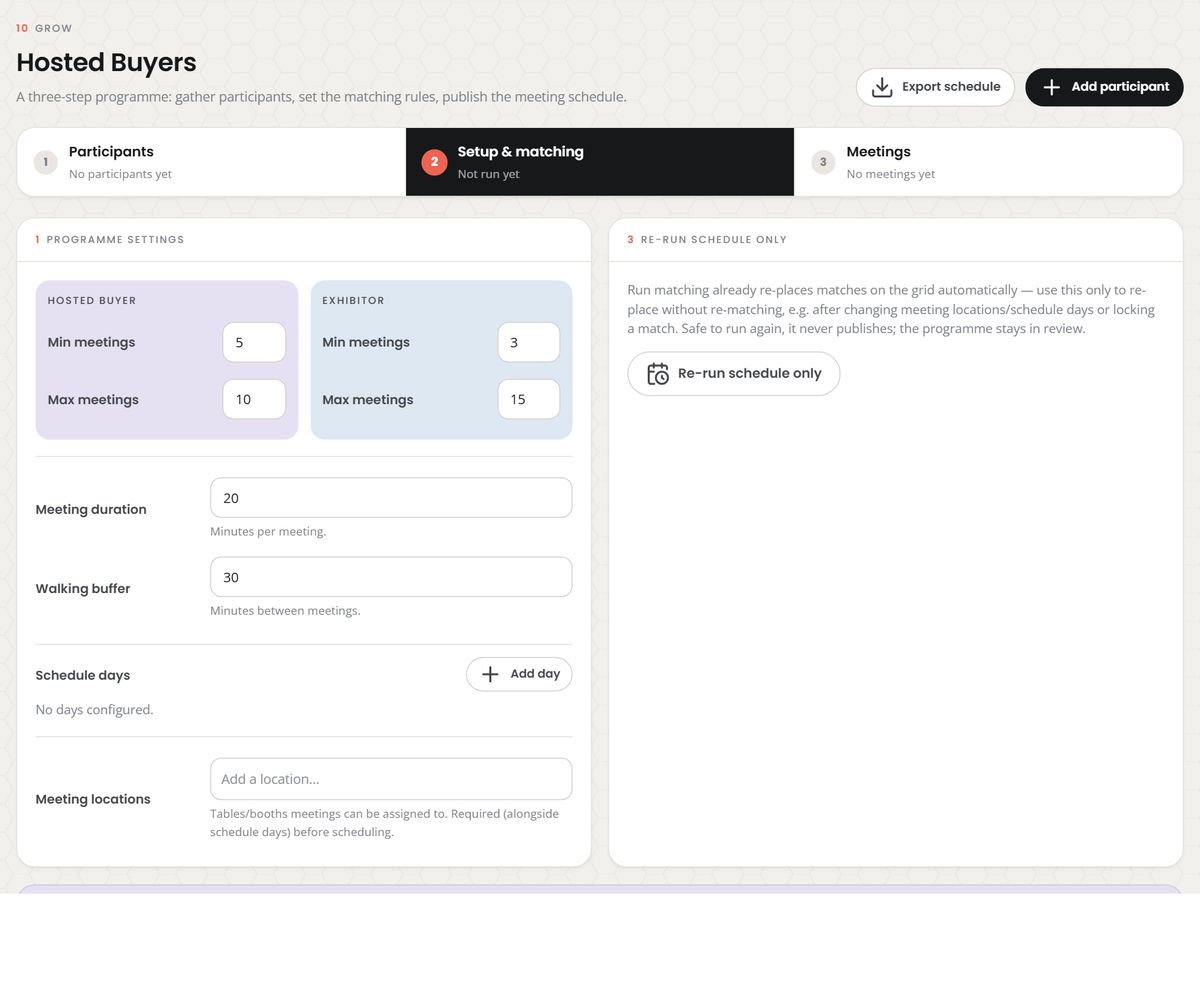
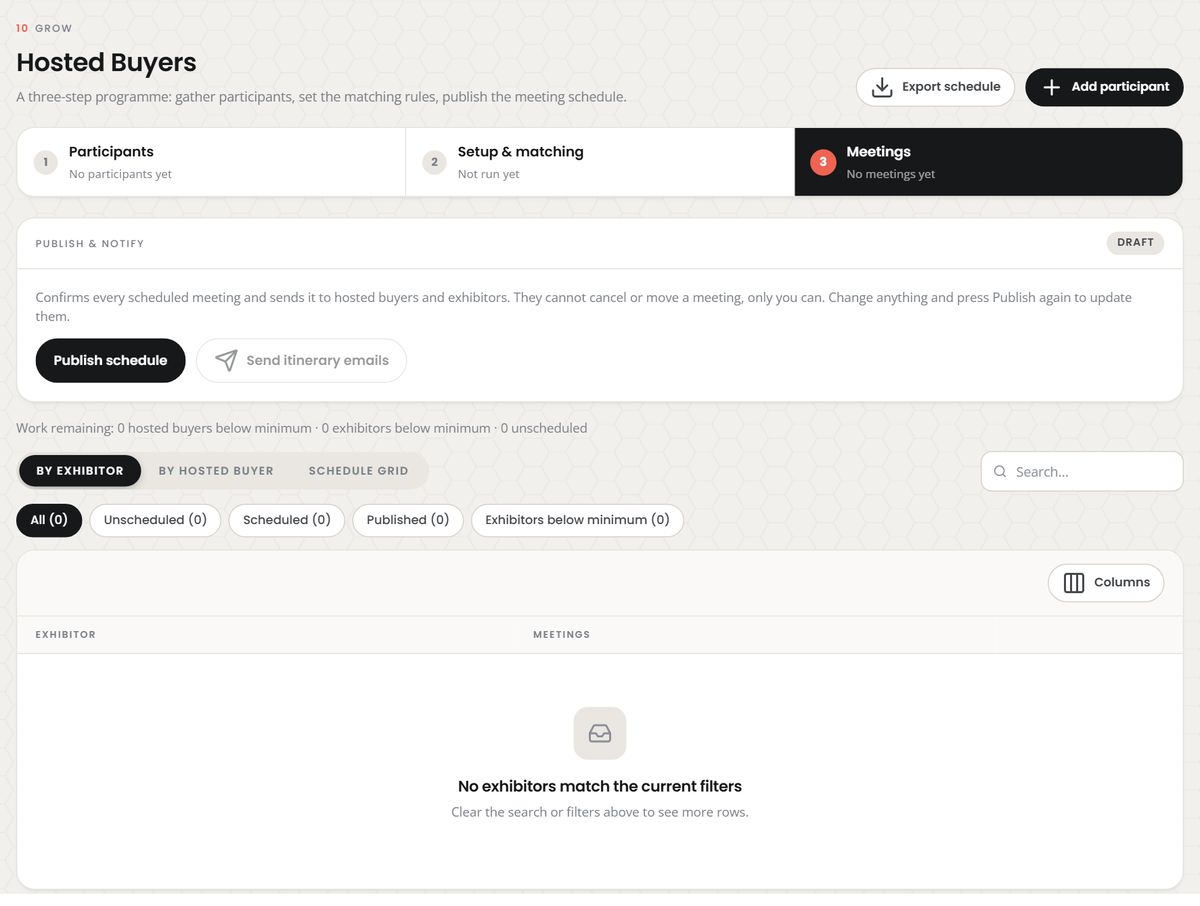
Its Step 2 and Step 3 look like this until you have done anything:
Step 1 — Participants
This step answers one question: who is in this programme? Two rosters — hosted buyers and exhibitors — and four numbers above them.
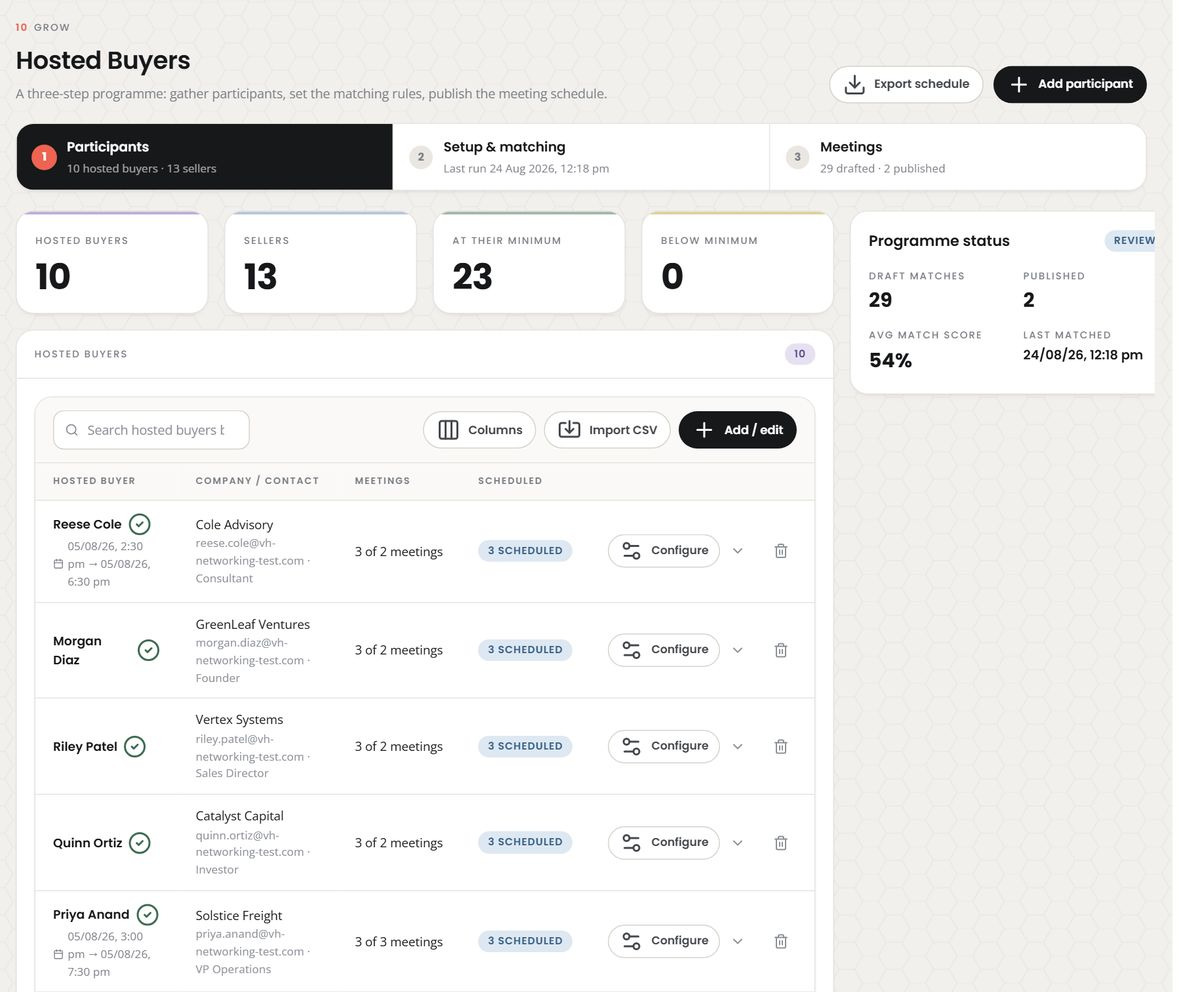
1.1 Read the four tiles

| Tile | What it counts |
|---|---|
| Hosted buyers | People enrolled in this programme |
| Sellers | Exhibitors enrolled in this programme |
| At their minimum | Participants (both sides added together) who have hit their meeting minimum |
| Below minimum | Participants (both sides) who have not |
At their minimum and Below minimum both read 0 until you have run matching — there is nothing to measure yet. Afterwards they are your readiness gauge: the goal is Below minimum at 0.

1.2 Add hosted buyers
Press Add / edit on the Hosted buyers panel.
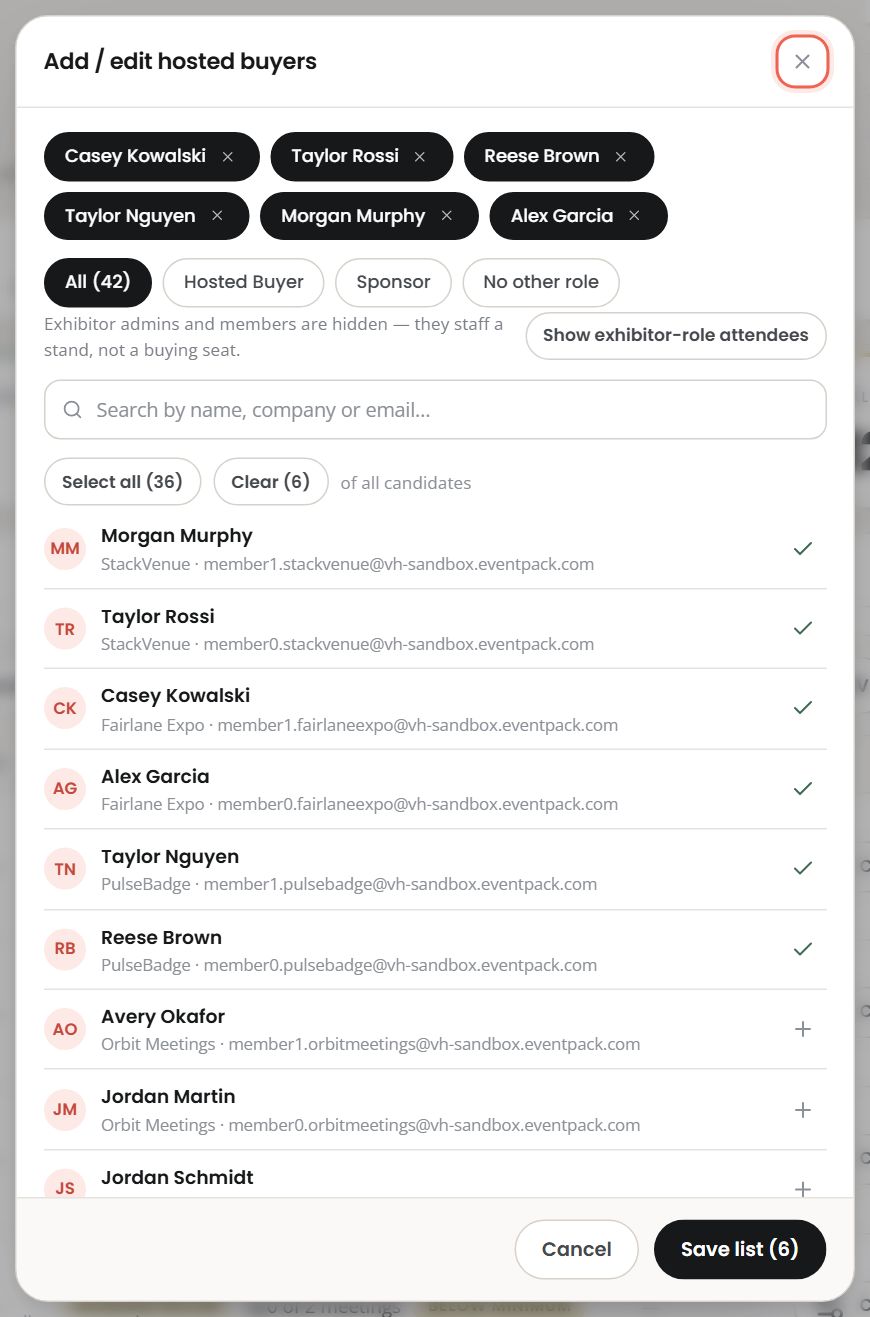
The black pills across the top are who is currently in the programme; the list below is everyone you could add. Tick to add, untick to remove, and the button at the bottom always states the outcome: Save list (8) means eight people will be in the list when you press it.
If somebody you expect is missing from the list: exhibitor admins and team members are hidden on purpose. They staff a stand, not a buying seat, and putting one inside a buyer programme puts a seller in the room. The note under the filters says so, and the button beside it lets you override it for the rare genuine case:
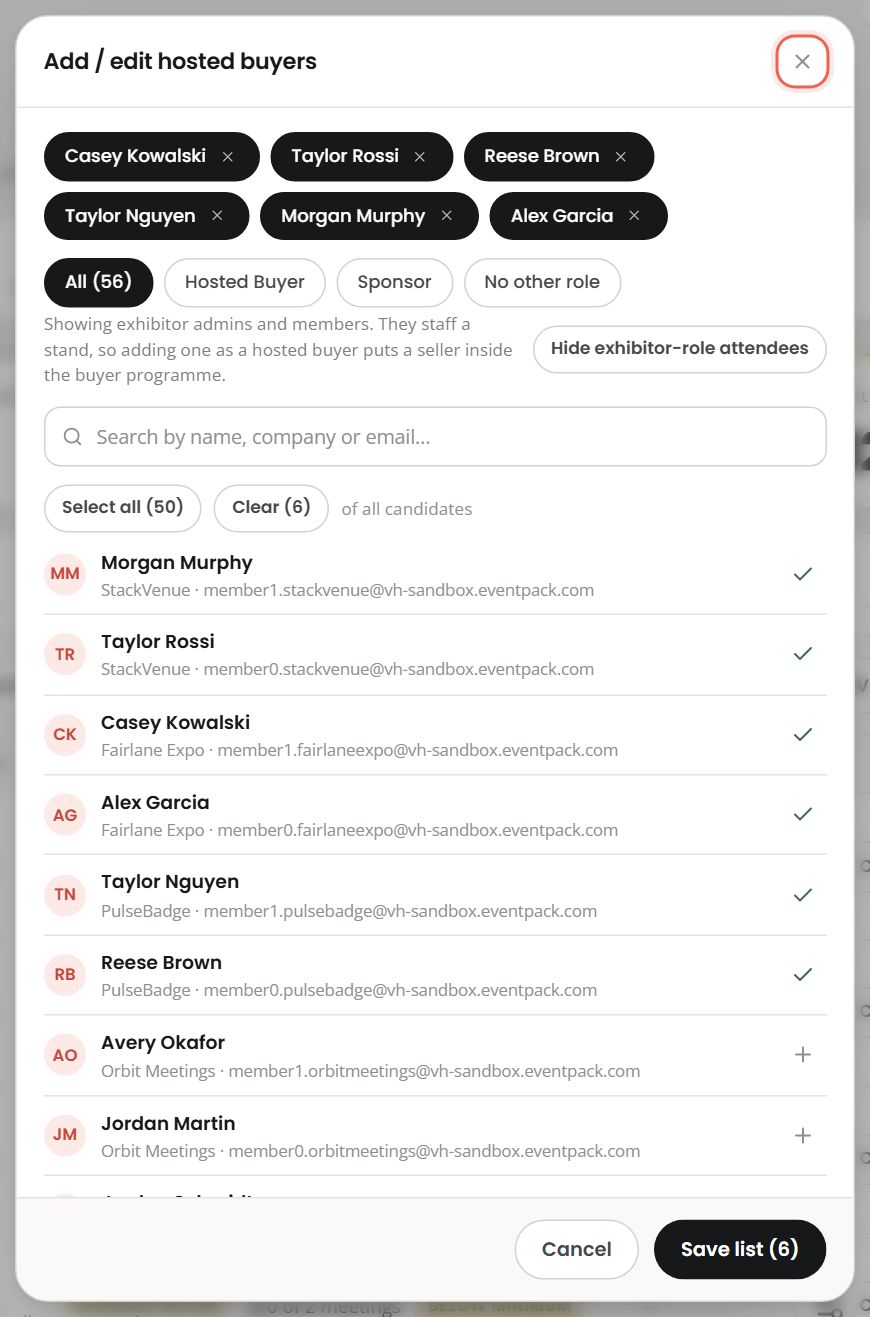
The override resets every time you reopen the dialog — it is an escape hatch for one decision, not a setting.
The filter chips narrow the list by what registration says about someone:
| Chip | Means |
|---|---|
| All | Everyone eligible |
| Hosted Buyer | Registration has them flagged as a hosted buyer — and nothing else |
| Sponsor | Registration has them flagged as a sponsor |
| No other role | A plain attendee, no other badge |
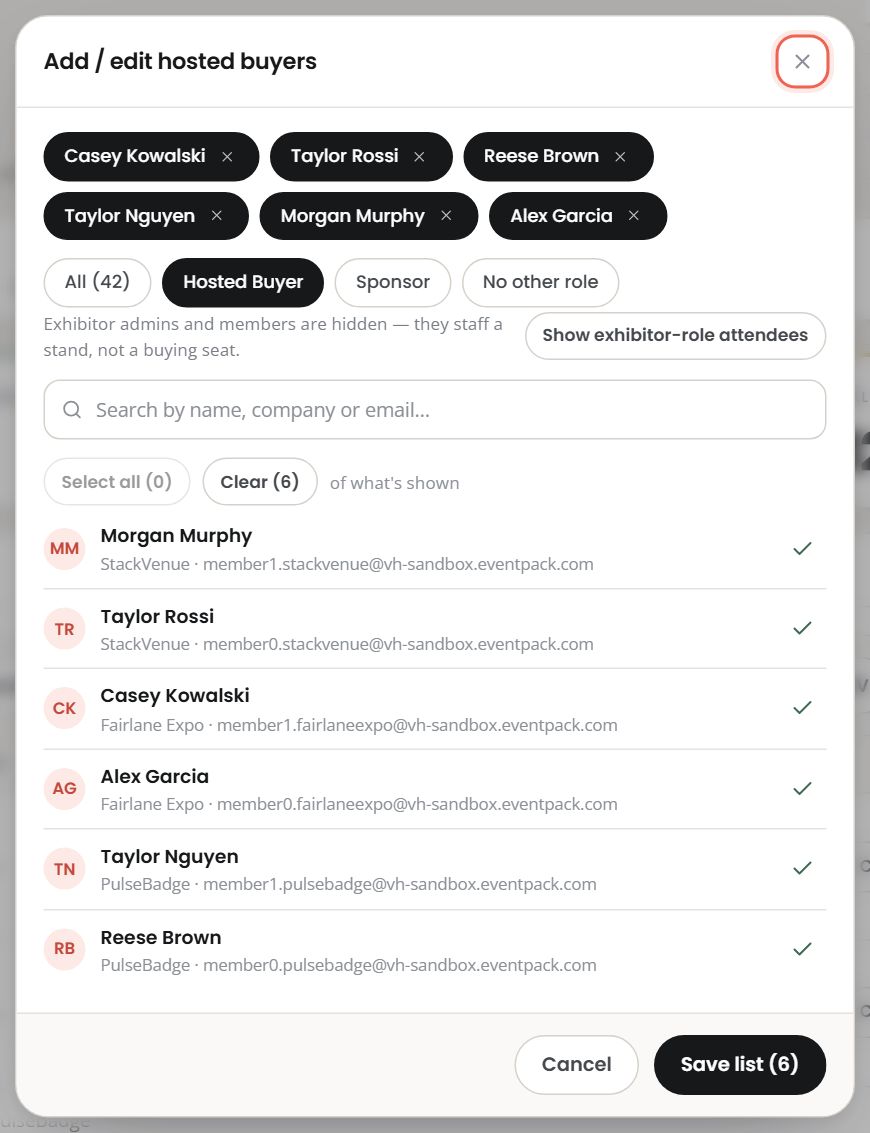
This chip is the fastest way to answer "is everyone registration calls a hosted buyer actually in my programme?" — because the two are deliberately separate things. The role is registration data. The programme is your list. Someone can be one without the other.
If your event has more than 200 attendees, the picker's list stops at 200 rows. Use the
search box rather than scrolling — it searches name, company and email. (Verified: typing
priya narrowed 23 rows to the matching ones.)
When you press Save:
- Adding people only → saves straight through.
- Taking anyone out → you get stopped first, because the button's count cannot express a removal:
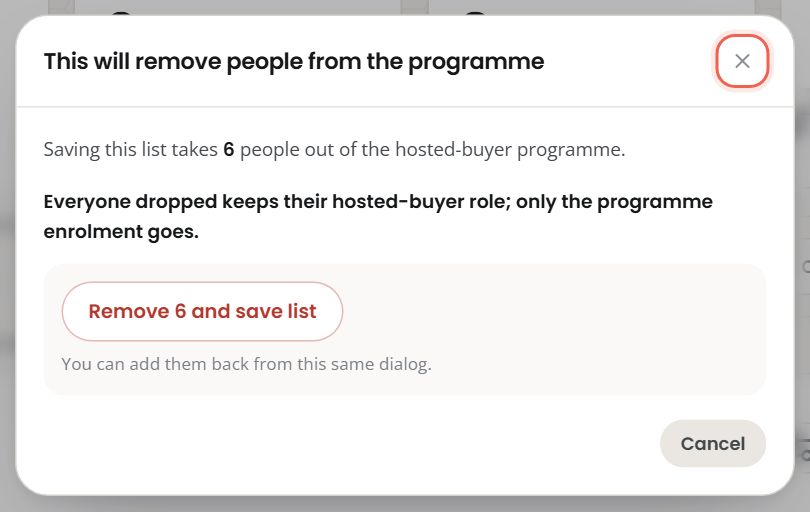
That dialog is exact about the cost: how many people leave the programme, and how many draft meetings get deleted with them. Two things worth knowing:
- Draft meetings you locked are included. Removing someone from the programme overrides the lock.
- Published meetings are untouched, and everyone dropped keeps their hosted-buyer role — only the programme enrolment goes.
1.3 Add exhibitors
Same shape, on the second panel. One chip here — Opted into programme.
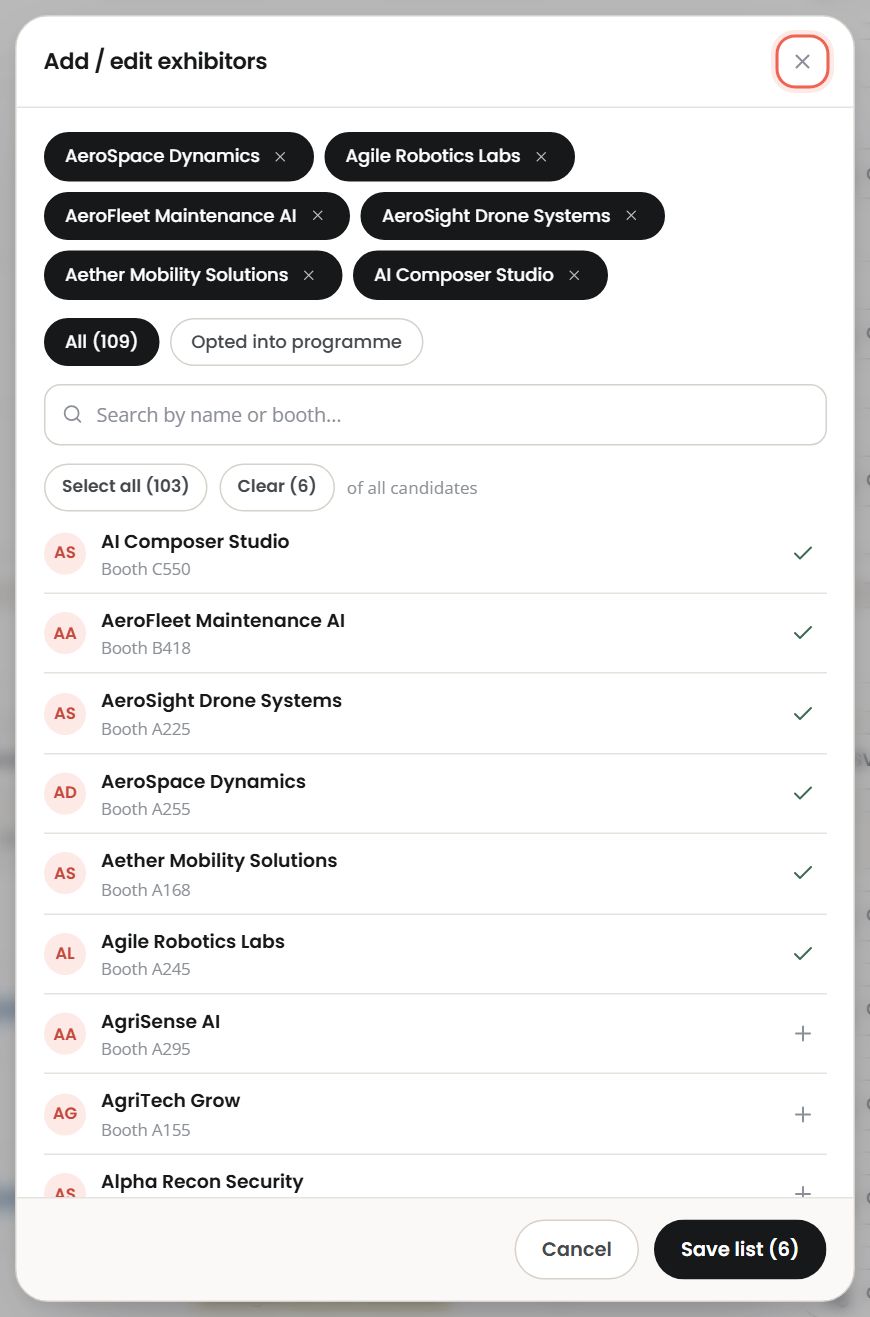
An exhibitor needs a booth/stand number for scheduling to work, because a hosted-buyer meeting always happens at the exhibitor's stand — you can move the time of a meeting but never its place.
1.4 Or import a CSV
Import CSV on either panel takes a file and matches its rows to people you already have:
- Hosted buyers are matched on the
emailcolumn. - Exhibitors are matched on the
company(orname) column, falling back toexternal_id.
A minimal buyer file:
email,name,company
elena.kappas@example.com,Elena Kappas,Falcon Supply Co
skyler.reed@example.com,Skyler Reed,Freelance
Every import ends with a receipt:
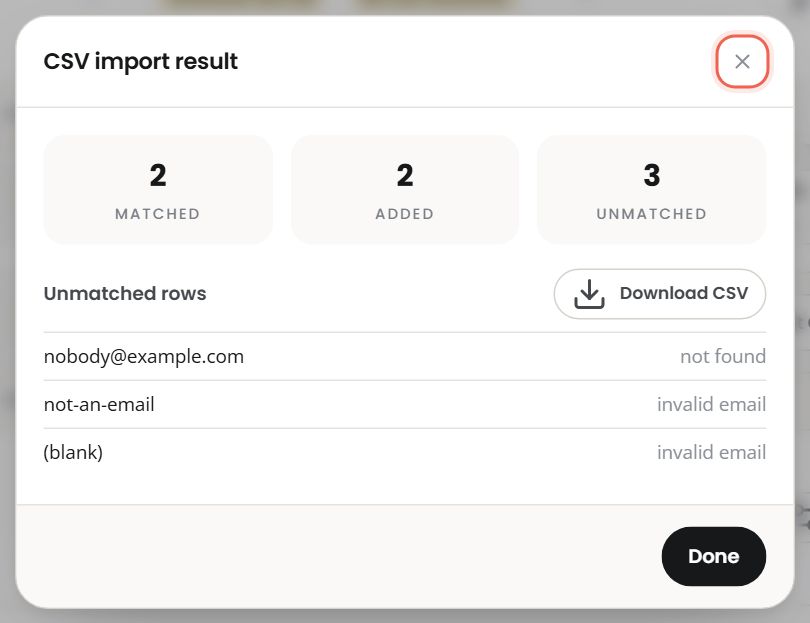
| Number | Means |
|---|---|
| Matched | Rows that found a person/exhibitor in this event |
| Added | Of those, how many were not already in the programme |
| Unmatched | Rows that could not be used — listed underneath with a reason |
The reasons you will see:
| Reason | What to do |
|---|---|
| not found | Nobody in this event has that email / no exhibitor has that name. Check for typos, or add them to the event first (Data Hub). |
| invalid email | The cell is not an email address, or is blank. |
| ambiguous | (exhibitors only) Two exhibitors share that name. Use the external_id column instead. |
If there are more than 8 unmatched rows, the popup shows the first 8 and a count. Download CSV gives you the full list with your original columns intact, so you can fix it and re-import.
An import enrols people; it does not re-label them. Importing does not set anybody's hosted-buyer role — that is registration data, changed in Data Hub or by your registration feed. This matters: a CSV upload can never silently re-classify your attendees.
1.5 Configure one participant
Configure on any row opens the same dialog for buyers and exhibitors.
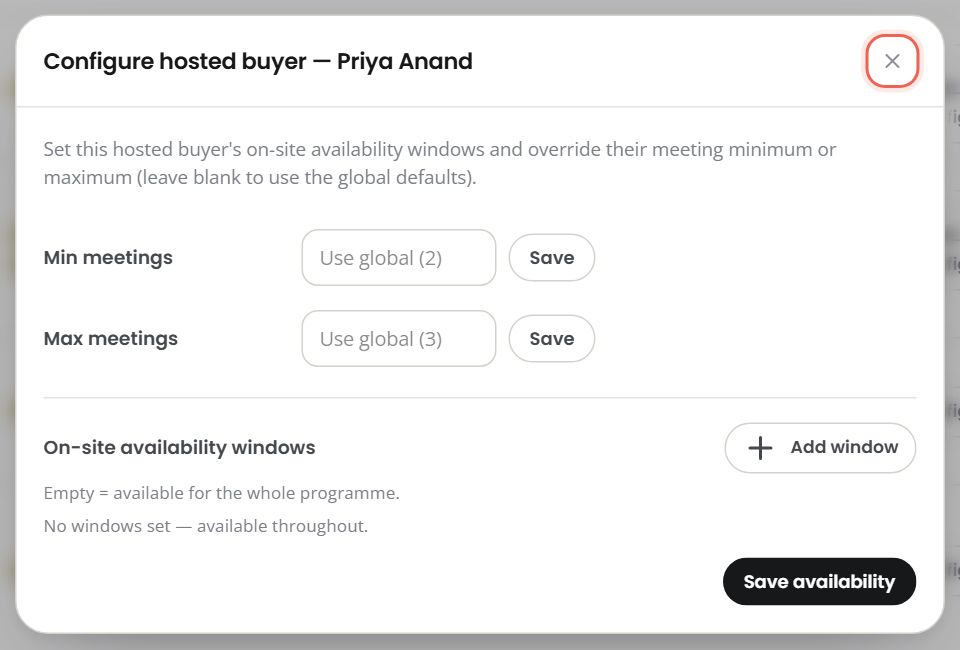
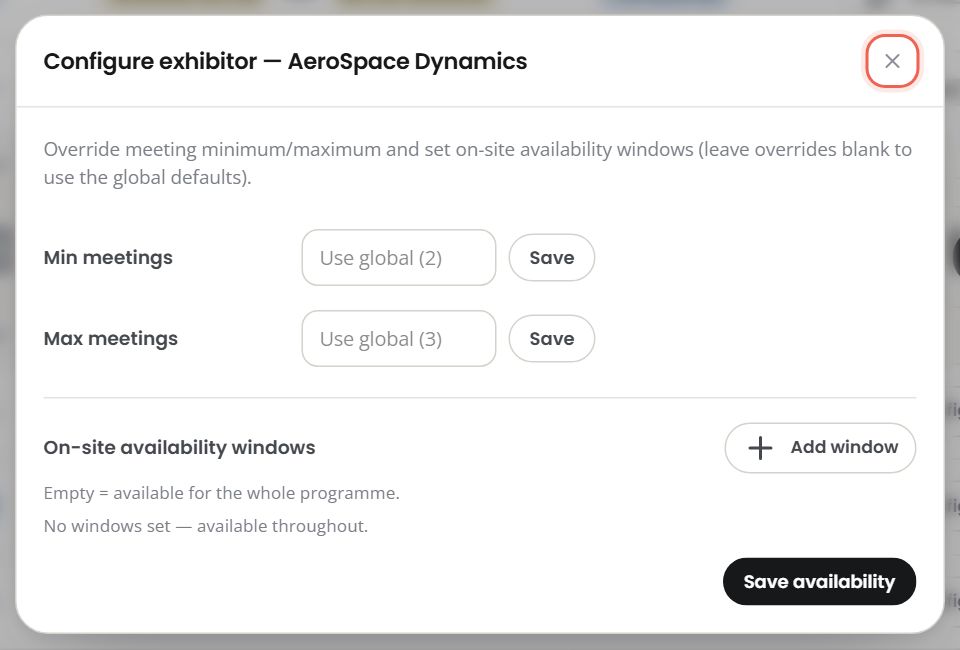
Three independently-saved fields — each has its own Save, so you can change one and leave the others alone.
Min / max meetings. Leave either blank to use the programme default; the placeholder
tells you what that default currently is (Use global (2)). Type a number to override it
for this one person.
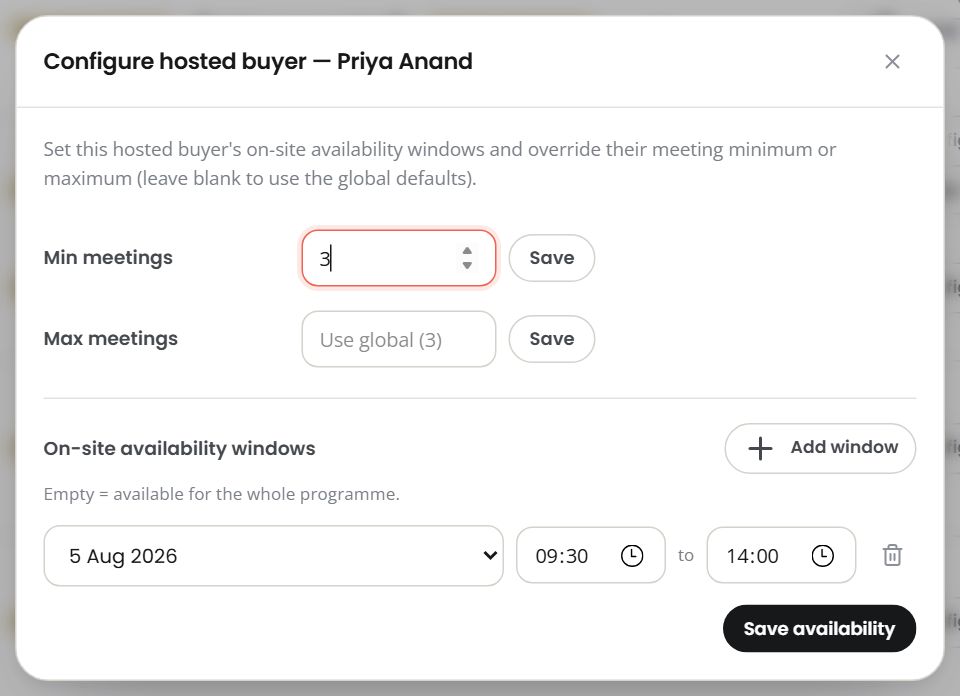
If you set a minimum above the maximum, the participant's row grows an amber warning
triangle — hover it and it says Min is above max. Nothing is blocked; it is a nudge.
On-site availability windows. By default a participant is treated as available for the whole programme. Add windows when they are not — a buyer flying in at noon, an exhibitor whose stand is unstaffed after 3pm.
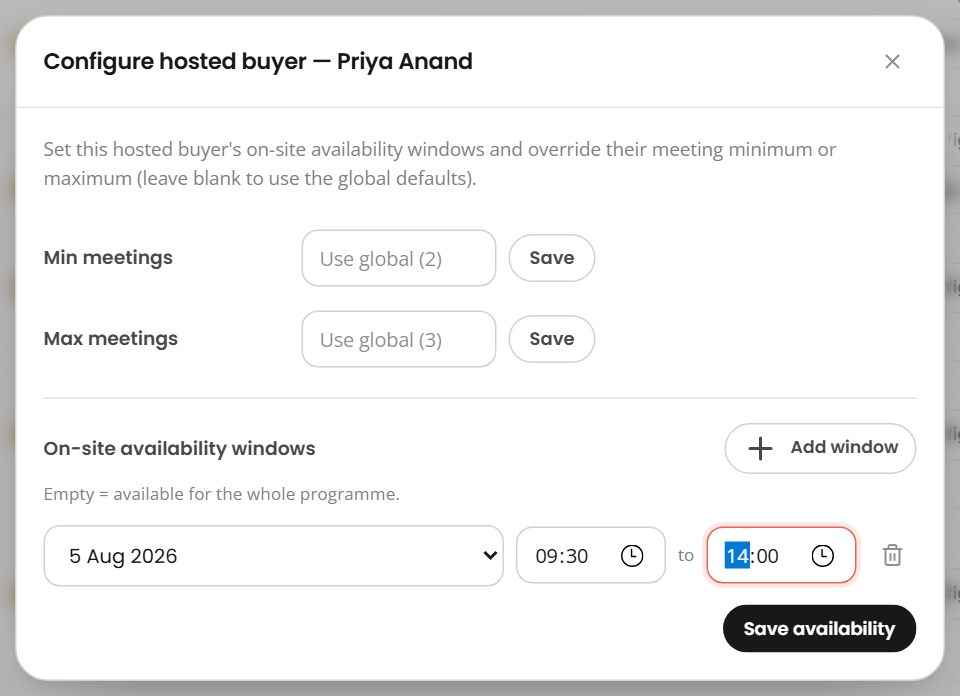
Pick a day, a start and an end, then Save availability.
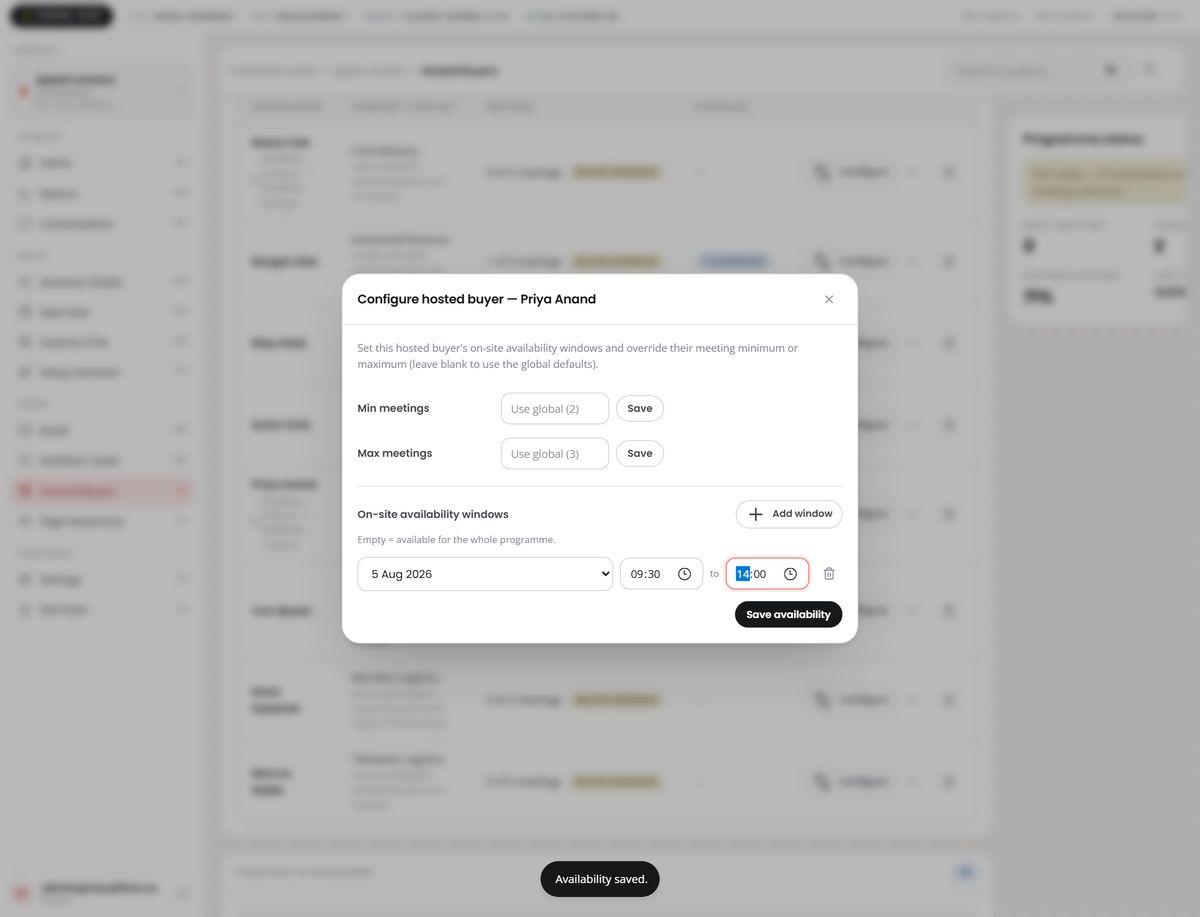
- If you have not set up event days yet, both buttons are disabled and the panel says
Add event days in Setup & matching → Programme settings before setting windows.Do that first — a window with no day to attach to cannot be stored. - If a row is missing its start or its end, that row is skipped and the confirmation
says so:
Saved, but 1 window was skipped — each needs both a start and an end time.A partial save is never reported as a clean one. - Empty means available throughout. Removing every window is how you undo this.
Exhibitors get the same dialog, re-titled:
1.6 See someone's meetings without leaving the page
The chevron on any row expands it.
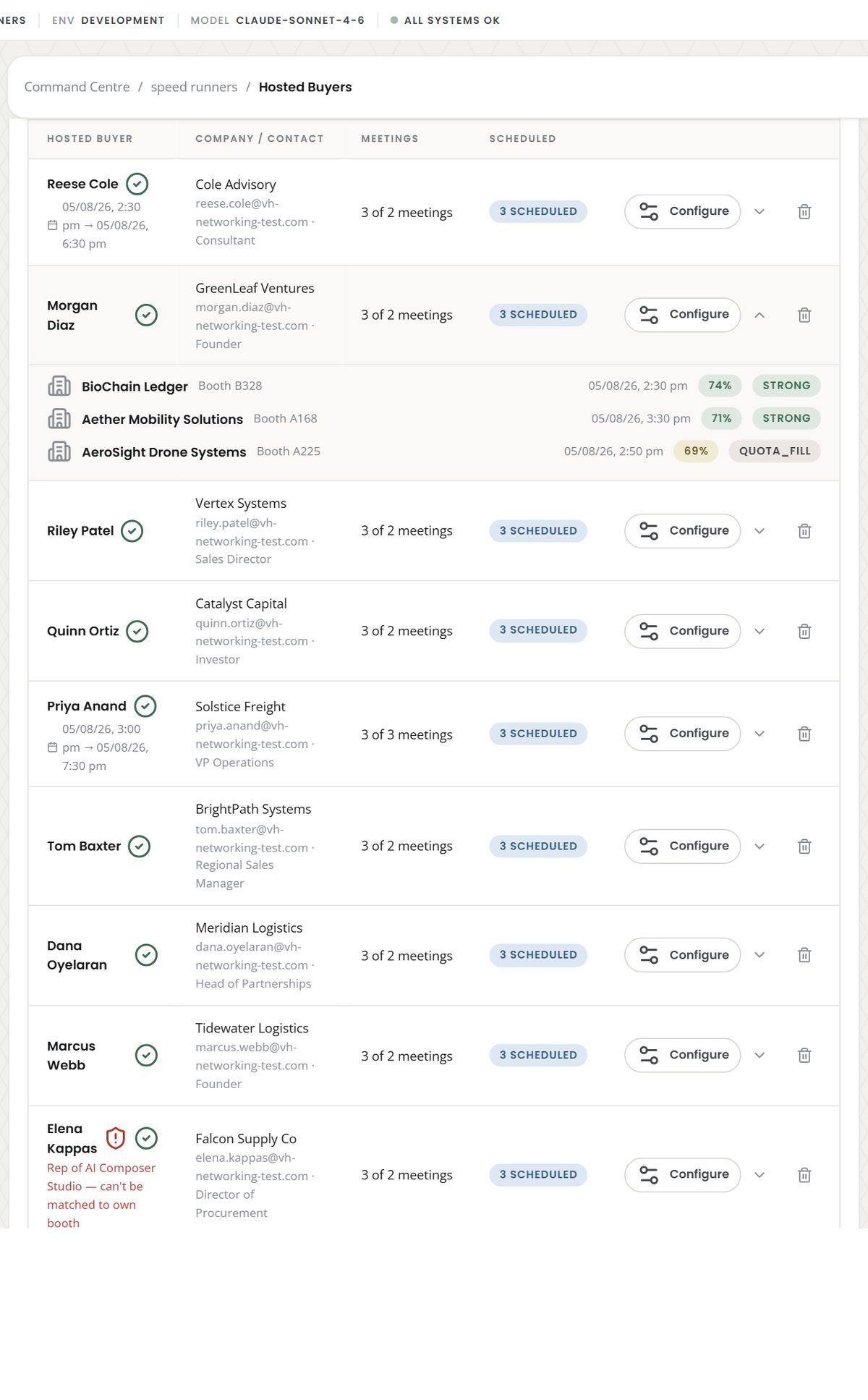
Each meeting shows the counterpart, their booth, the time (or Not yet scheduled), a match
score and a confidence word. Before matching has run, this reads No meetings yet.
1.7 Remove a participant
The bin icon — deliberately set apart from the other two row buttons — asks a question rather than confirming one:
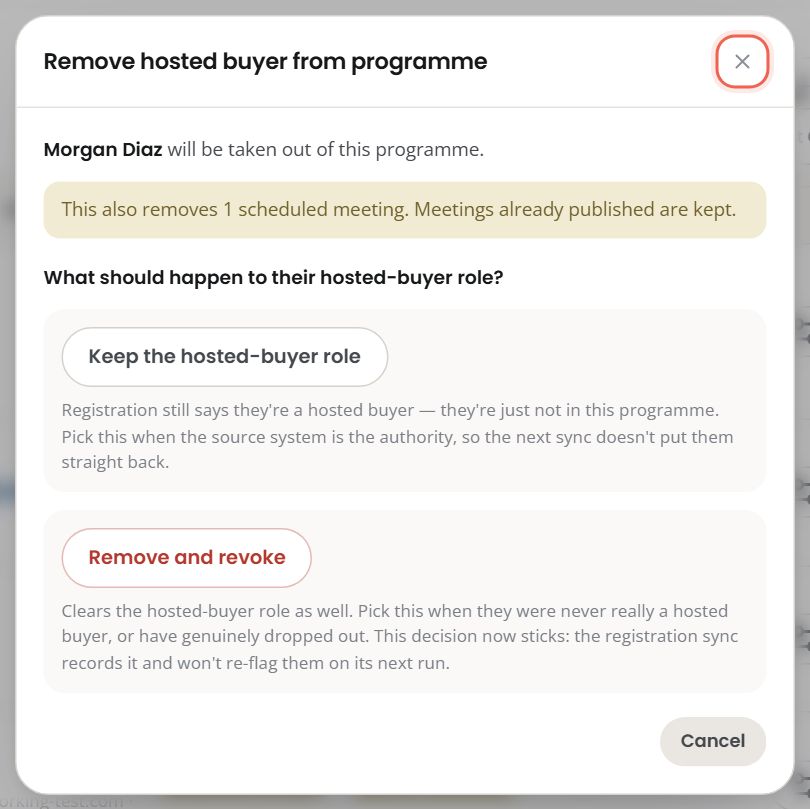
Two different outcomes, spelled out before you choose:
| Choice | What it writes |
|---|---|
| Keep the hosted-buyer role | Out of this programme. Registration still says they are a hosted buyer. Pick this when your registration system is the authority, so the next sync does not put them straight back in. |
| Remove and revoke | Out of the programme and the role is cleared. Pick this when they were never really a hosted buyer, or have genuinely dropped out. The registration sync records the decision and will not re-flag them. |
If they have scheduled meetings, the dialog says how many will go — and that anything already published stays. If they have none, that line simply is not there:
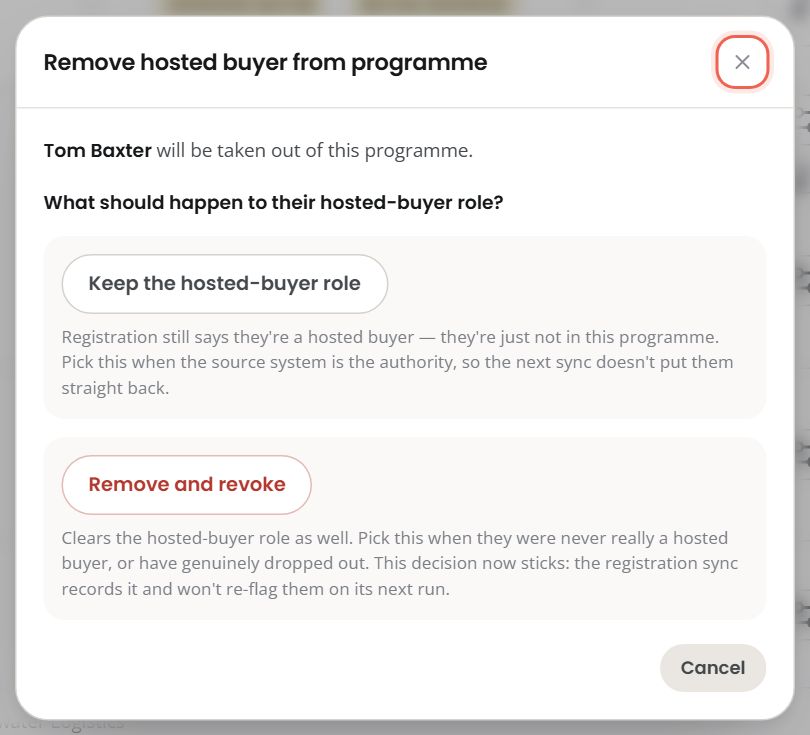
Either way you get about five seconds to Undo from the confirmation that follows, and the message names the cost again — "Removed "Skyler Reed" from the programme — also removes 3 scheduled meetings." (Verified: pressing Undo put the person and their meetings back exactly as they were; nothing had been written.)
1.8 The icons on a row
| Icon | Meaning |
|---|---|
| 🛡️ red shield | Self-match conflict — this person is a confirmed rep of an exhibitor that is also in the programme. They cannot realistically be matched to their own booth, so part of their minimum is unreachable. |
| ⚠️ amber triangle | A data problem — missing email, missing company, or min set above max. Hover for the list. |
| ✅ green tick | Their meeting minimum is met. Only appears after matching has run. |
1.9 The status rail
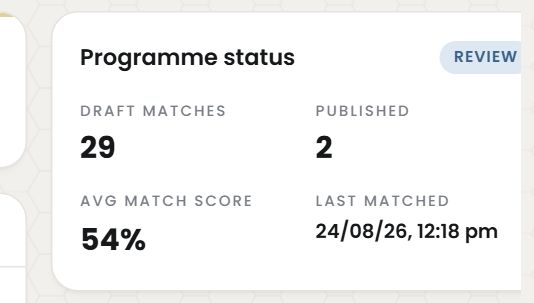
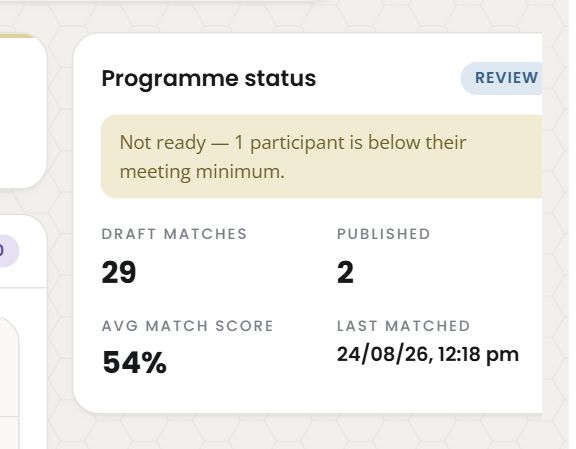
Programme status, how many meetings are drafted versus published, the average match score, and when matching last ran. If anyone is below their minimum, a line appears at the top of the rail saying so — the programme's own "not ready yet" signal:
Step 2 — Setup & matching
This is where you set the rules, then run the matcher.
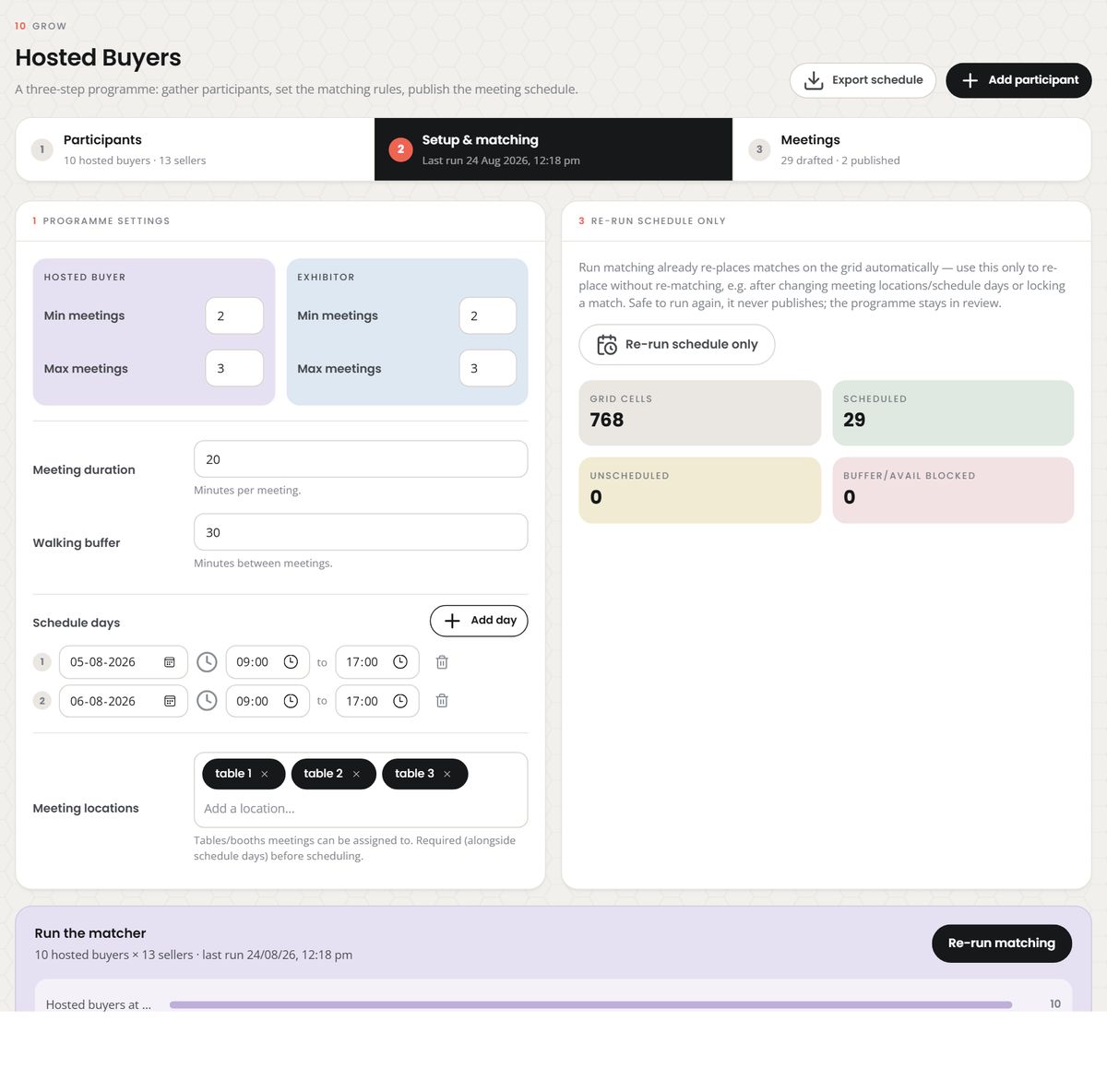
2.1 Programme settings
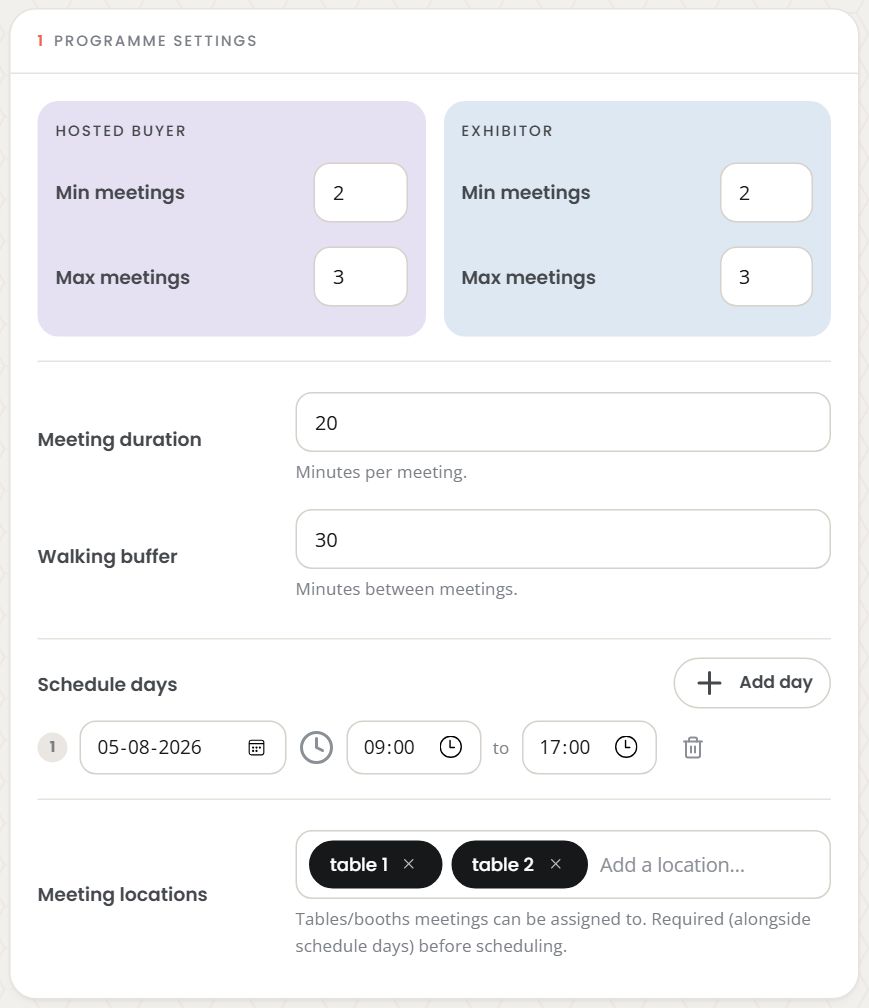
| Setting | What it does |
|---|---|
| Hosted buyer — min / max meetings | The target and the ceiling for every buyer, unless overridden per person |
| Exhibitor — min / max meetings | The same, for each exhibitor |
| Meeting duration | Minutes per meeting |
| Walking buffer | Minutes left free between one participant's meetings, so nobody has to teleport across the hall |
Duration and buffer together decide how many slots exist. A 20-minute meeting with a 30-minute buffer means one participant can hold a meeting every 50 minutes.
2.2 Schedule days and meeting locations
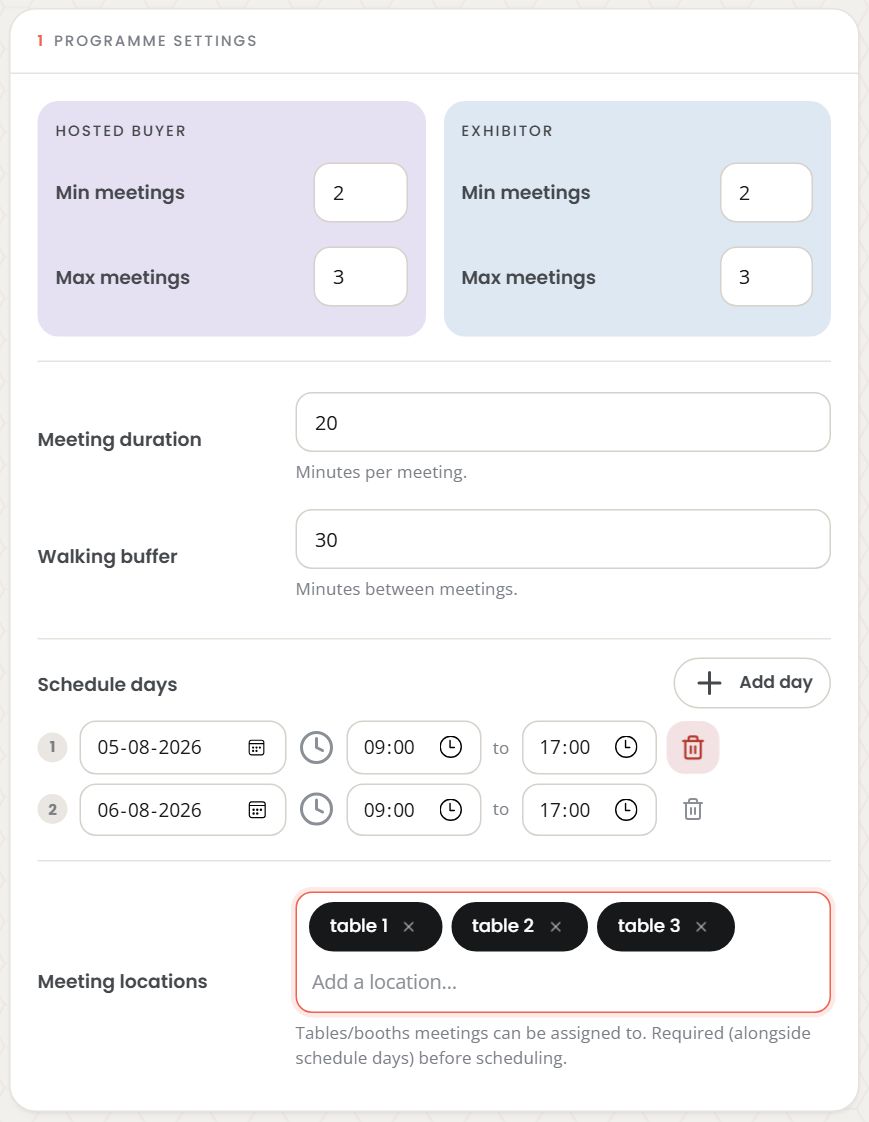
Add day for each day of the event, with the hours meetings may be booked in. Meeting locations are the tables or stands meetings can be placed at.
Both are required before anything can be scheduled. With no days, the availability builder in Step 1 is disabled too.
The bin on a day row and the ✕ on a location tag both remove immediately on screen — but nothing is written until you save, so reloading the page brings them back. (Verified.)
2.3 Saving
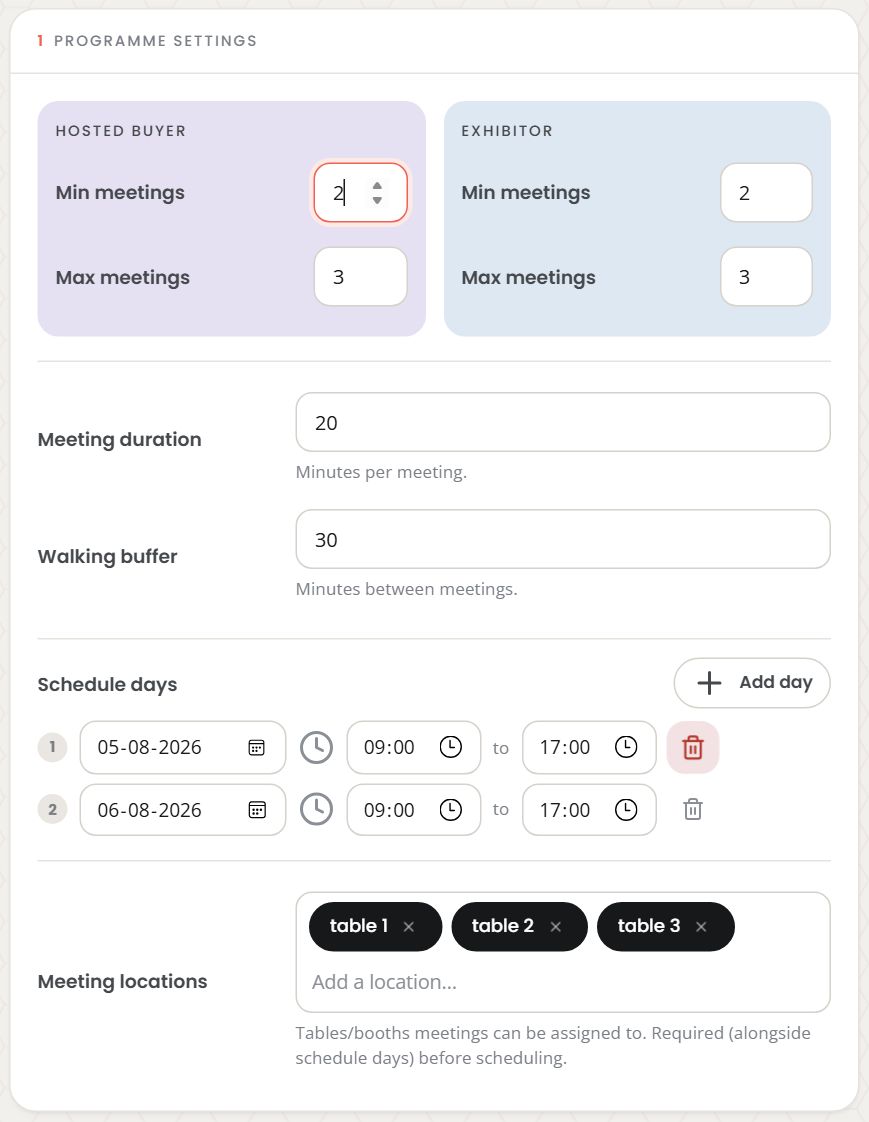
Changes are not live as you type. A bar appears at the bottom of the screen as soon as you touch anything, counting what is unsaved:

Press Save settings and it confirms:
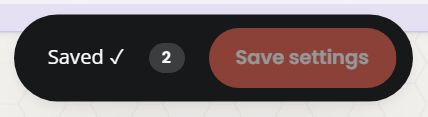
If you leave a number field blank, the save is refused and the bar names the field:

Nothing is saved in that case — not the blank field, not the other five. Blanking a programme-wide minimum is not a meaningful instruction, so the honest answer is to refuse rather than invent a number. (If you want "no opinion" for one person, that is a per-participant override in Step 1, left blank.)
If your session has expired, you are taken to the sign-in page and nothing was saved.
2.4 Run the matcher
The lilac banner is the consequential action on this page, and it says what it is about to work with.

- First run — the button reads Run matching.
- Every run after that — it reads Re-run matching and asks first:
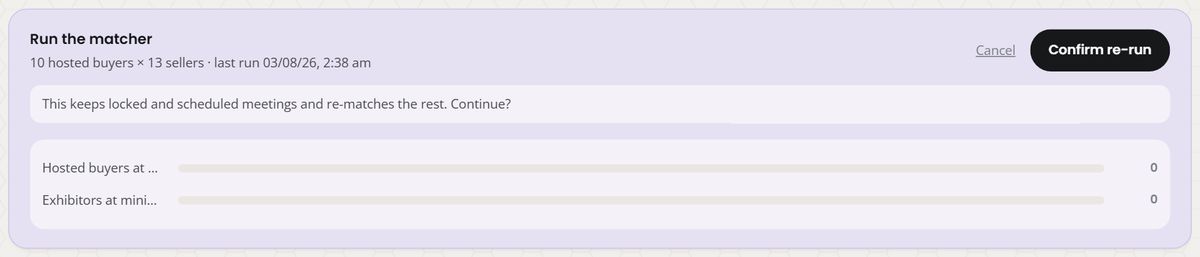
This keeps locked and scheduled meetings and re-matches the rest.
A run takes anywhere from a few seconds to a couple of minutes. When it finishes you get a result line that is about this run:

Matched 31 pair(s). 0 exhibitor(s) still below minimum. Auto-scheduled 29/768.
| Part | Means |
|---|---|
| Matched N pair(s) | Total pairings that now exist |
| M exhibitor(s) still below minimum | Exhibitors the matcher could not fill |
| Auto-scheduled X/Y | X meetings placed on the grid, out of Y available (time × location) slots |
Matching schedules as it goes — you do not need a separate scheduling step after a run.
If the run takes longer than 60 seconds, you are told exactly that: Matching is still running after 60s — leave this page open or reload in a few minutes to see the result. It
is still going; nothing was lost.
If the run could not be started, the reason is shown instead. You will not be handed the previous run's numbers dressed up as this one's.
Once there are matches, two coverage bars appear under the banner:

2.5 Re-run schedule only
This re-places existing meetings on the timetable without re-matching anybody. Use it after you change locations, add a day, or lock a meeting. It never publishes, and it is safe to run repeatedly.
Afterwards, four tiles report what actually happened:
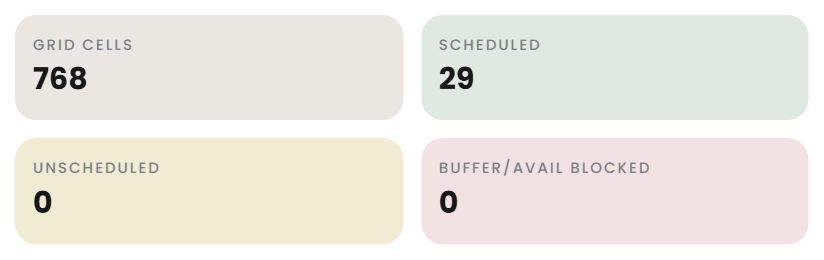
| Tile | Means |
|---|---|
| Grid cells | Slots that exist — days × hours × locations |
| Scheduled | Meetings placed |
| Unscheduled | Meetings it could not place |
| Buffer/avail blocked | Meetings blocked by a walking buffer or by somebody's availability window |
If Unscheduled is not zero, the usual causes are: too few locations, too few hours, availability windows that do not overlap, or a walking buffer large enough to starve the grid. Widen one of those and run it again. Any warnings the scheduler produced are listed under the tiles.
If scheduling fails outright, an error line appears in this panel only — it will never show up under "Run matching" and read as a matching result.
Step 3 — Meetings
Everything the matcher produced, three ways to look at it, and the buttons that make it real.
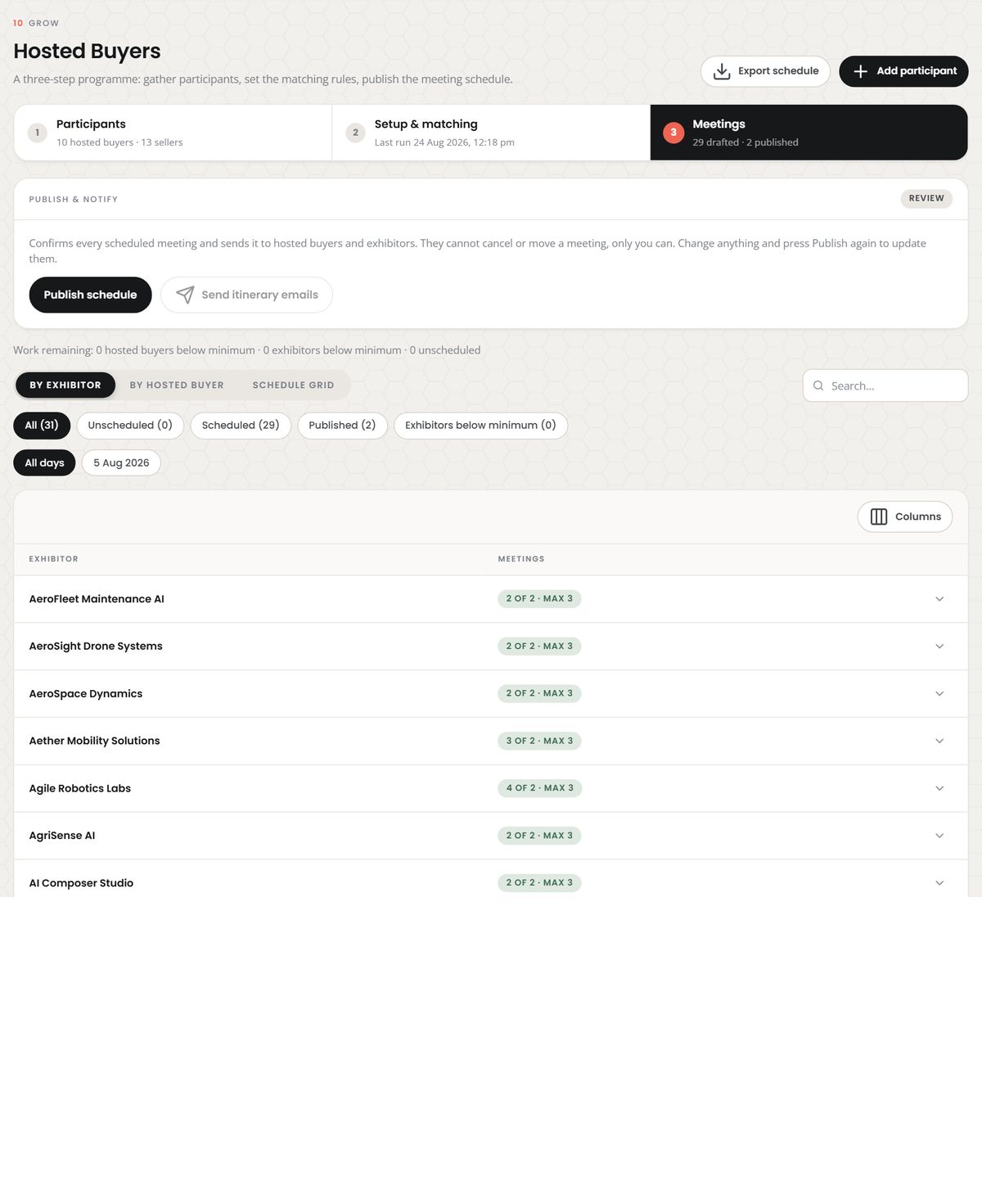
3.1 Work remaining
One line, directly under the publish panel — the shortest honest summary of whether you are done:

3.2 Filters

| Chip | Means |
|---|---|
| All | Every meeting that has not been removed |
| Unscheduled | Paired, but with no time and place yet |
| Scheduled | Has a time and place, not yet published |
| Published | Sent to both sides |
| Exhibitors / Buyers below minimum | Rows short of their minimum. The label names which side, because it counts only the side the current view lists |
If more than one day has meetings on it, a second row of chips appears to filter by day:

If a filter leaves nothing, you are told it was the filter — not that you have no
meetings: No exhibitors match the current filters. Clear the search or filters above to see more rows.
3.3 The three views
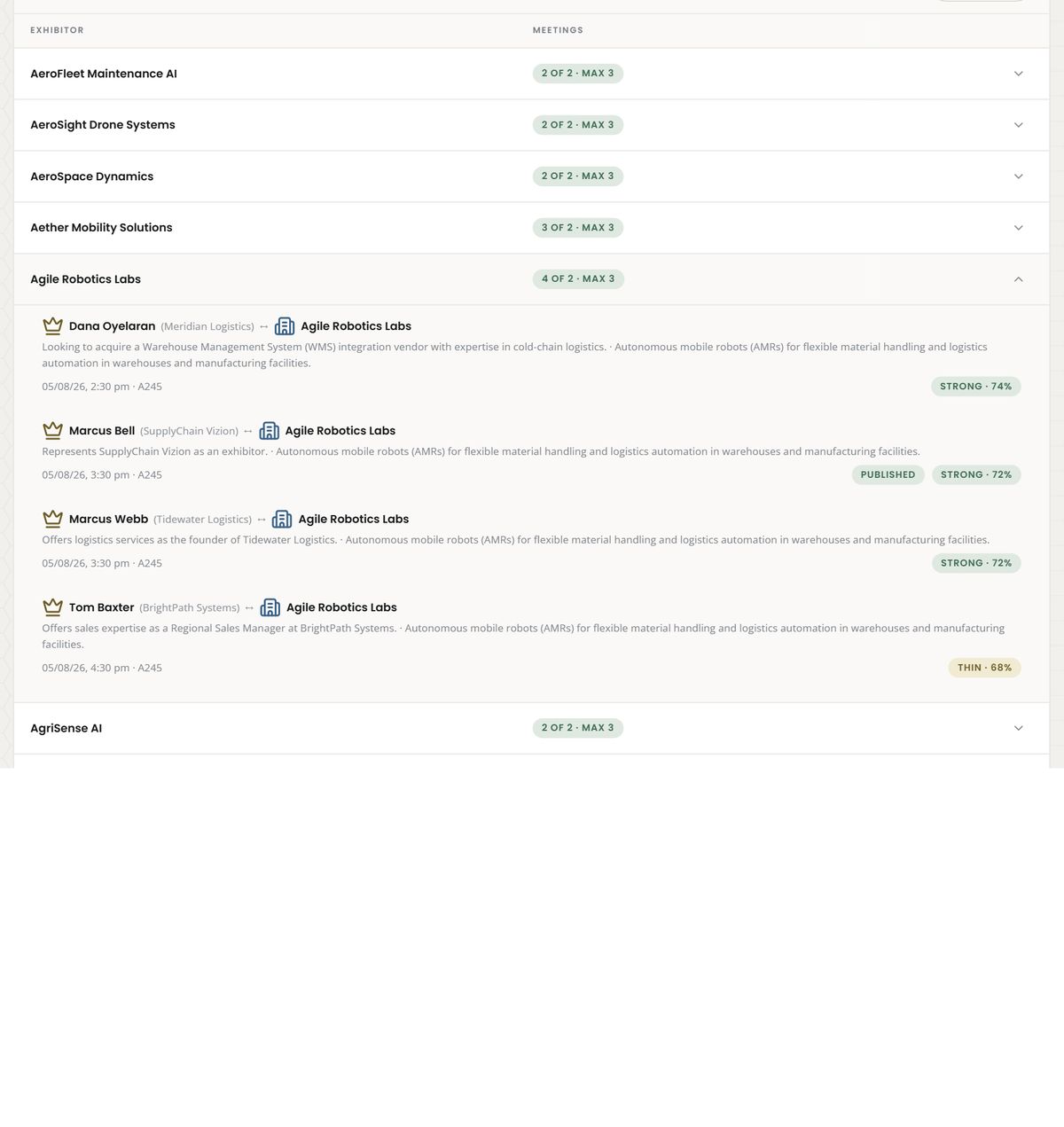
By exhibitor — one row per exhibitor, with their count against their minimum and maximum. Rows short of their minimum sort to the top.
By hosted buyer — the same, from the buyer's side.
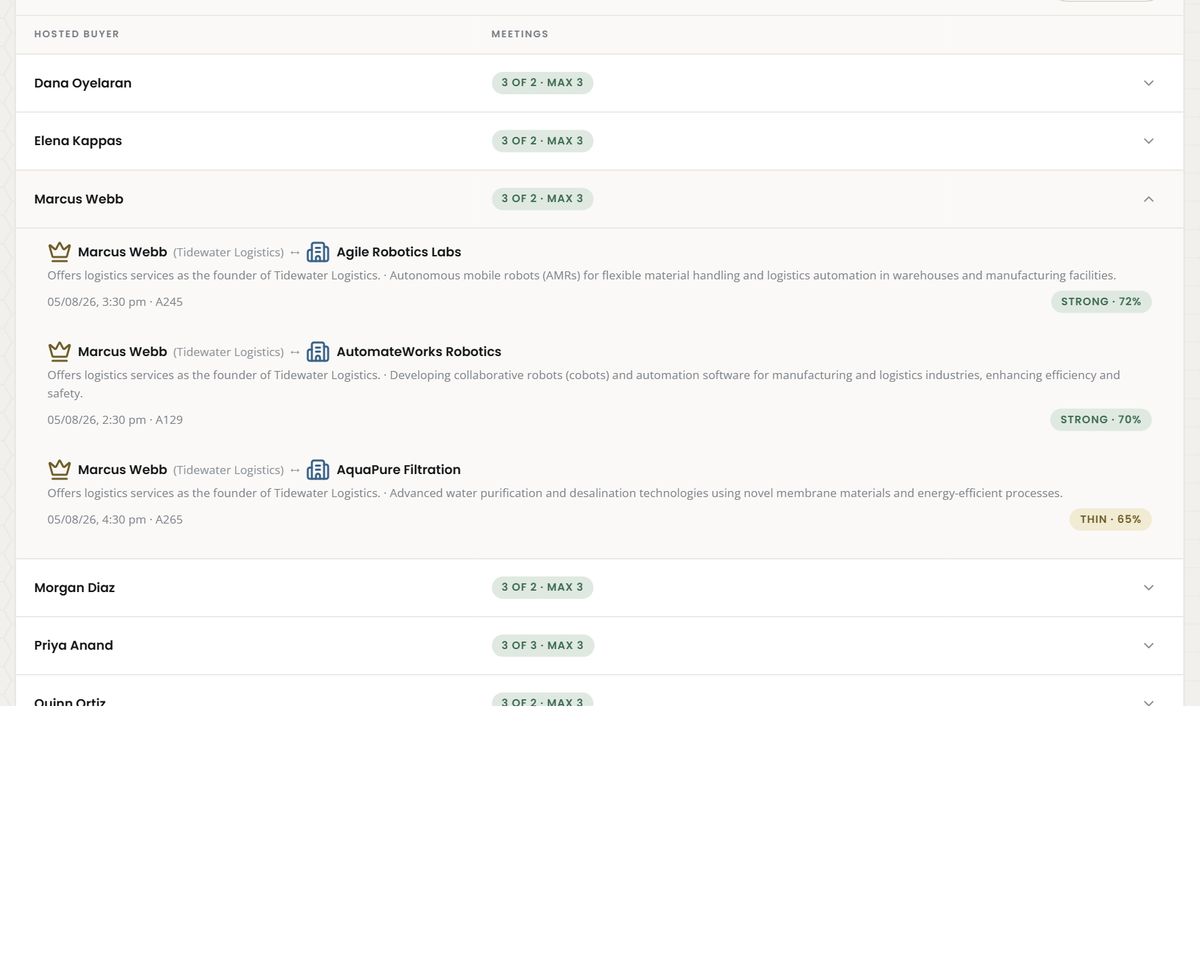
Each expanded meeting is one clickable row:

It carries both parties, the matcher's one-line reason, the time and place (or Not yet
scheduled), a padlock if the meeting is locked, a published pill once it is, and a quality
pill — the confidence word plus the score.
Schedule grid — the timetable itself, times down the side, locations across the top.
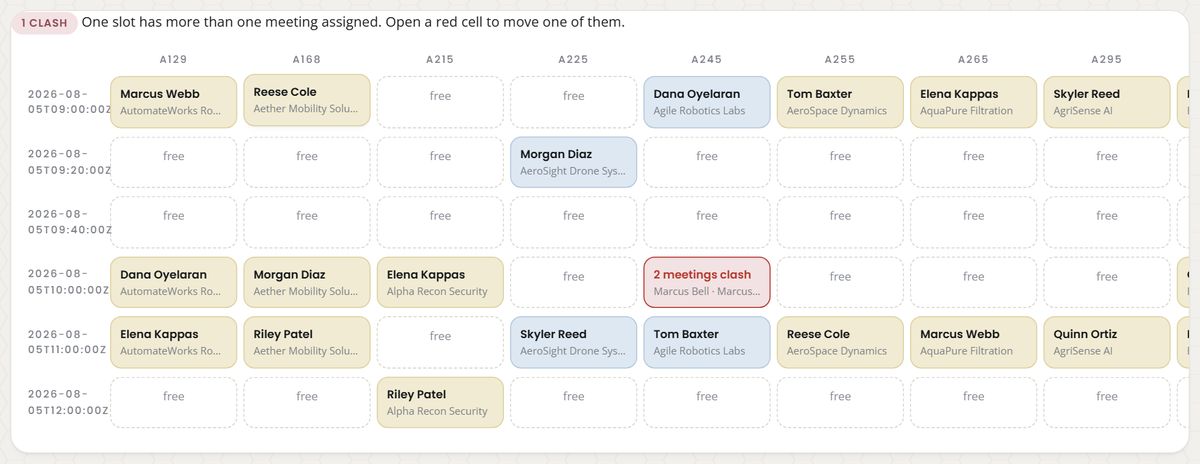
| Cell | Means |
|---|---|
| free (dotted) | Nothing booked there |
| Sand (filled) | A drafted meeting |
| Blue | A published meeting |
| Red — "N meetings clash" | More than one meeting in the same place at the same time |
If there are clashes, a count sits above the grid, because a red cell twenty rows down is easy to scroll past:

Click a red cell to open one of the clashing meetings and move it. A clash can happen two ways: the scheduler placed a draft where a published meeting already sat, or somebody used Force anyway on a reschedule.
Wide events scroll sideways inside the grid. And if your filters exclude everything:

Editing a single meeting
Clicking any meeting — a row, or a grid cell — opens its detail dialog.
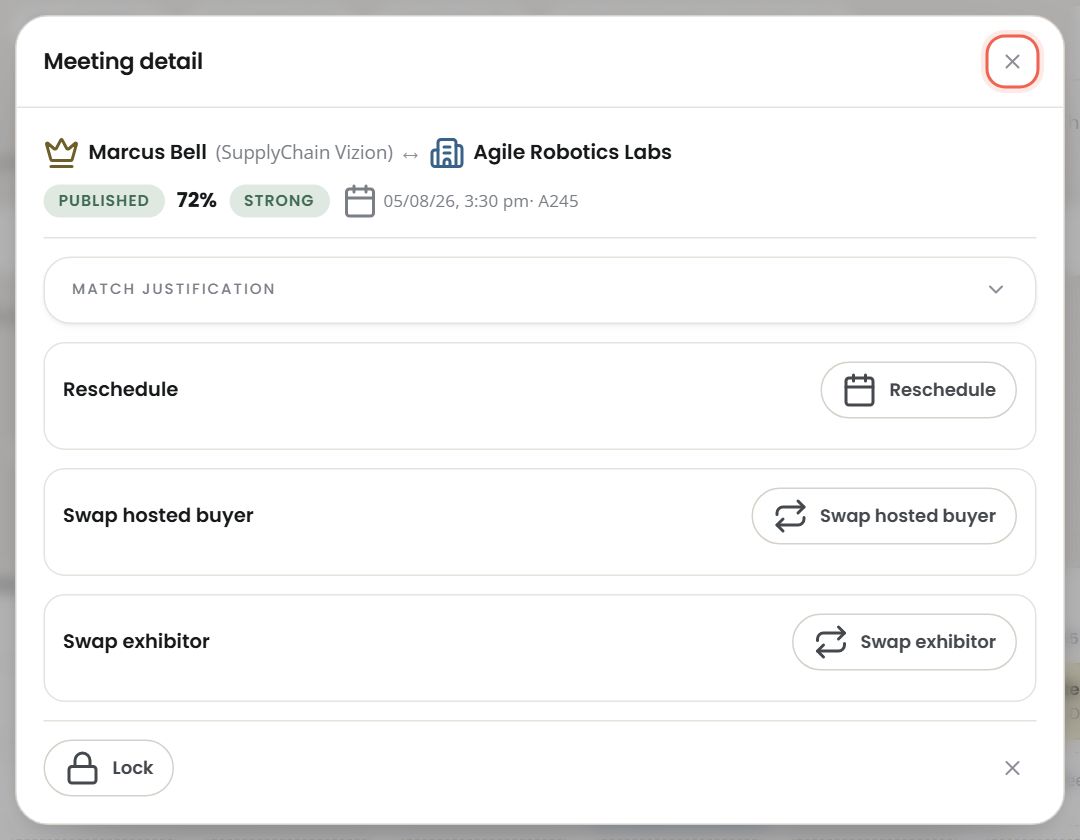
Top line: both parties. Then the status, the score, the confidence, and the time and place.
Why the matcher chose this
Match justification expands into the reasoning, both directions:
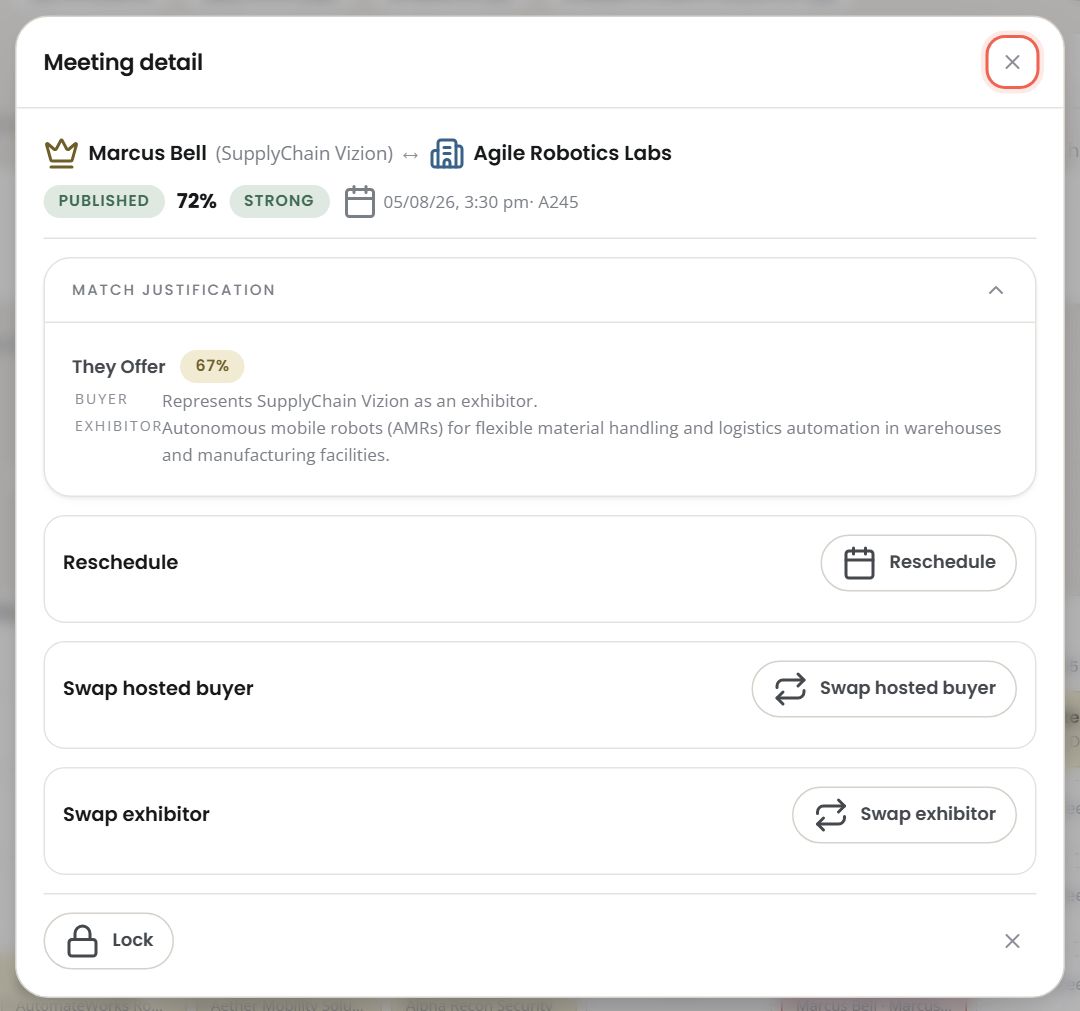
You get "why this exhibitor suits the buyer", "why this buyer suits the exhibitor", and a per-facet breakdown with the actual evidence taken from each side's profile — so you can tell a good match from a filler one at a glance.
Confidence is worth knowing:
| Word | Means |
|---|---|
| strong | A real content match |
| moderate | A reasonable match |
| quota_fill | Matched to fill a remaining quota, not a strong content match |
Locking a meeting
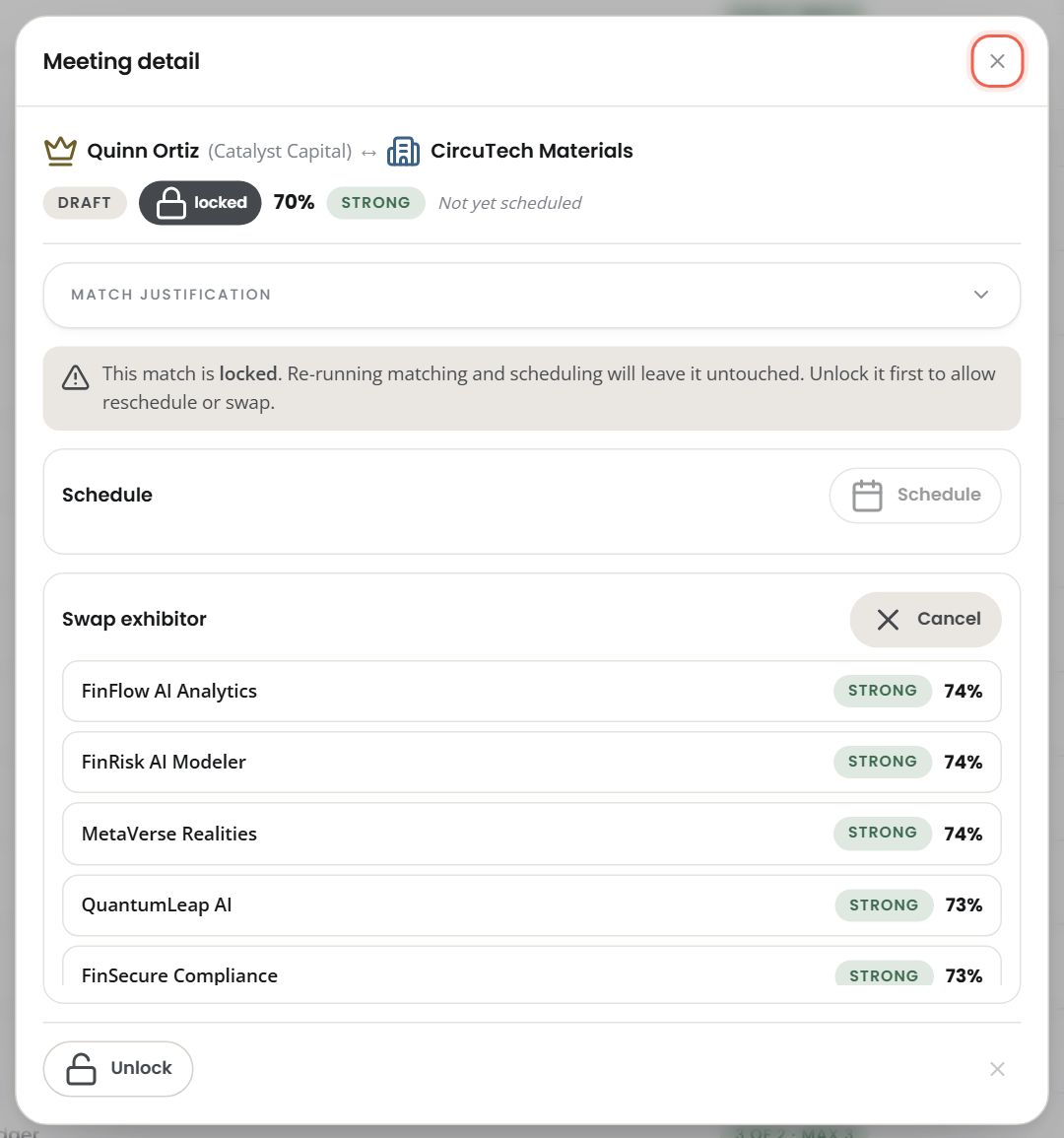
Lock protects a meeting from the next matching or scheduling run. While locked, every edit in the dialog is disabled and the reason is stated on each disabled button ("Unlock match before rescheduling"). Unlock, edit, lock again.
The one thing a lock does not survive: removing either participant from the programme in Step 1. That is called out in the roster-save dialog.
Rescheduling a published meeting
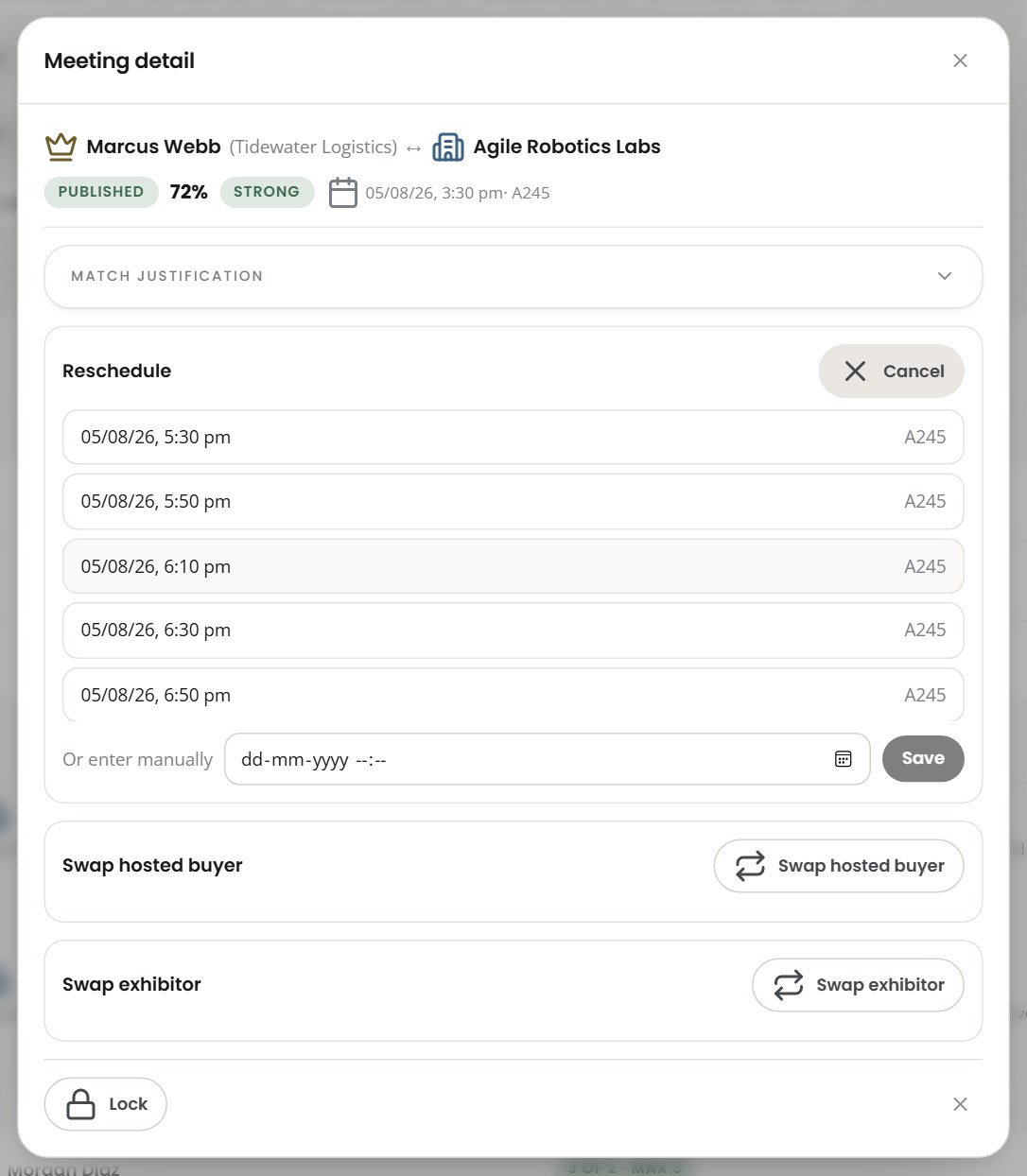
Reschedule offers up to five suggested times, each already checked against both parties' other meetings, their availability windows and the walking buffer. Pick one of these.
The place is not offered, because it is not yours to change — a hosted-buyer meeting is always at the exhibitor's stand.
If the time you pick collides with another published meeting, you are shown the conflict and given a deliberate choice: Force anyway, or Cancel. Forcing creates a real double-booking, which is why the grid draws it in red afterwards.
If the suggestions cannot be loaded, you are told that — and specifically not told there are no free slots:
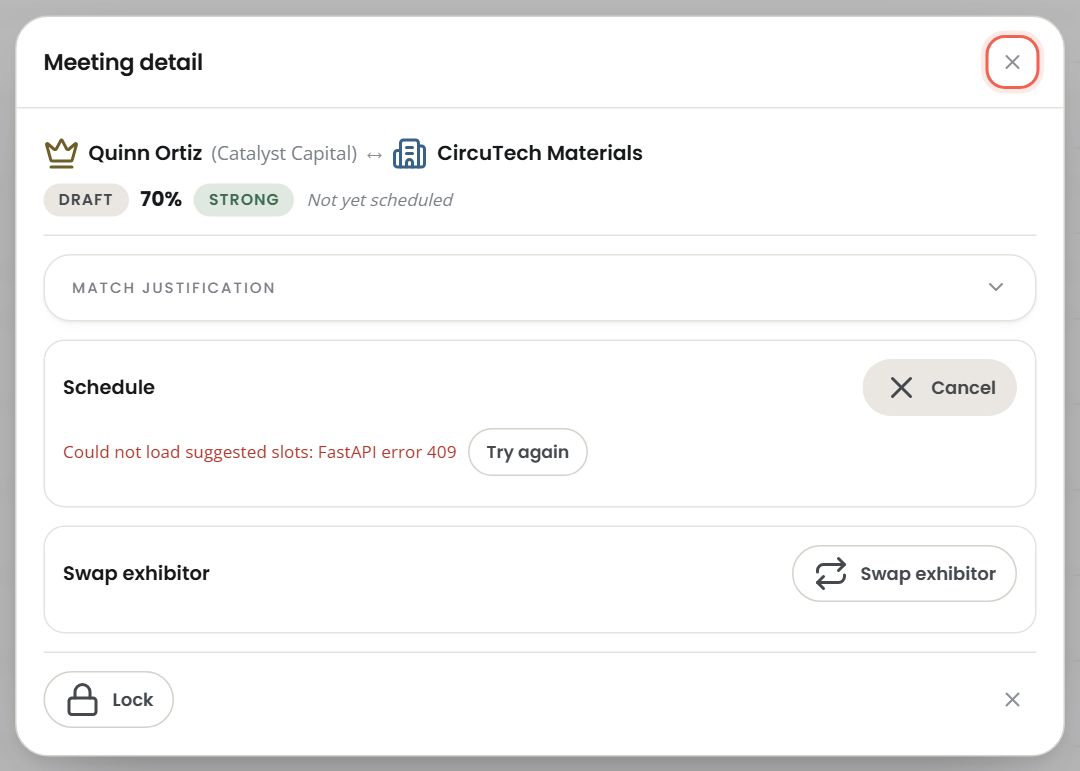
Couldn't check for free slots, so we can't say whether there are any.
That distinction runs through this whole dialog. "We looked and there are none" and "we could not look" are different sentences, and every list here gets the right one.
If the time you type clashes, you are told which rule it broke and given a deliberate choice. Nothing moves until you pick one:
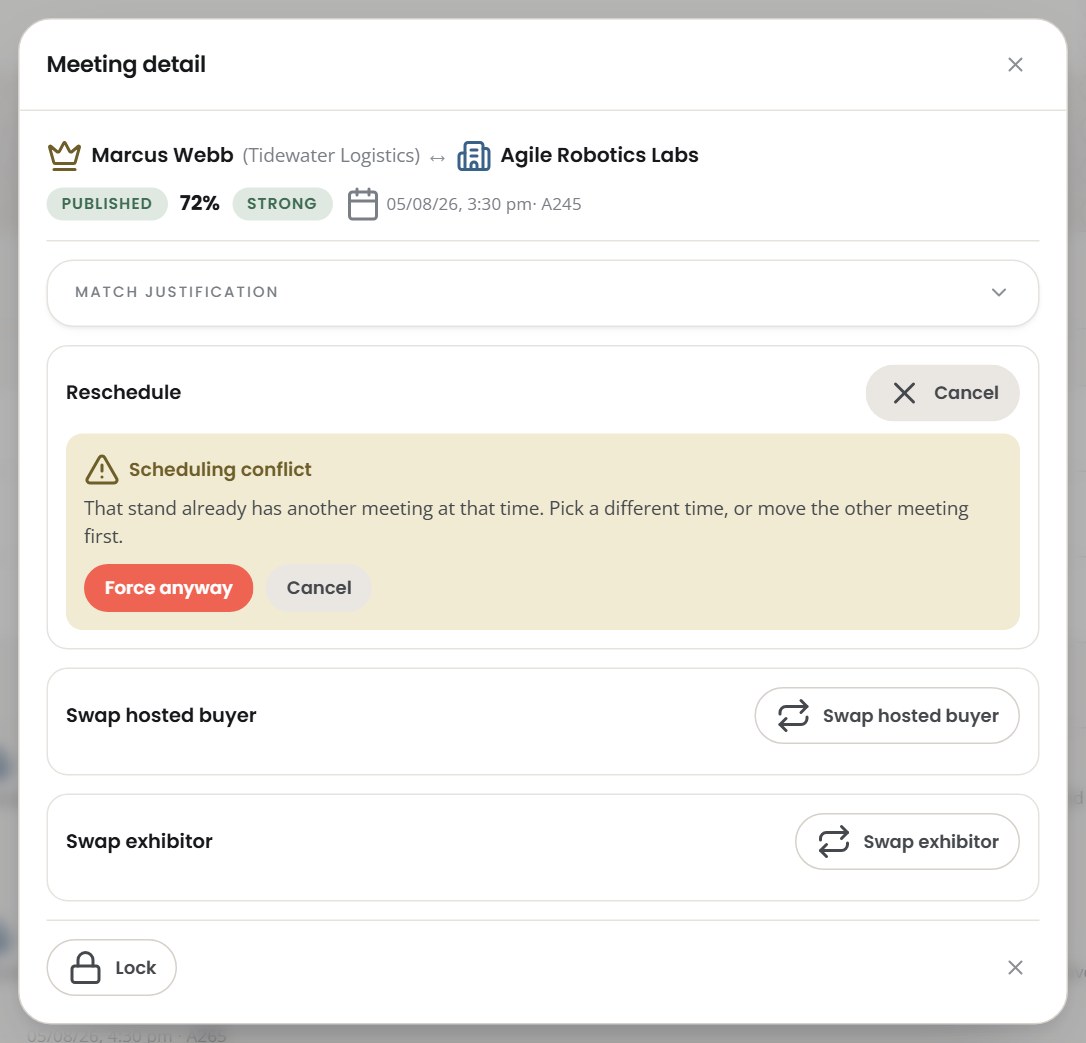
There are three things it can tell you, and each has a different fix:
| It says | What to do |
|---|---|
| That stand already has another meeting at that time | Pick another time, or move the other meeting first |
| Somebody has another meeting too close to walk between | Leave a longer gap, or reduce the walking buffer in Step 2 |
| That time is outside somebody's availability | Widen their windows in Step 1, or pick a time inside them |
If a reschedule fails outright, the reason appears in the same place and the slot picker stays open, so a retry is one click.
Swapping either side
Swap exhibitor lists candidates ranked — score and confidence for each, so you can trade up:
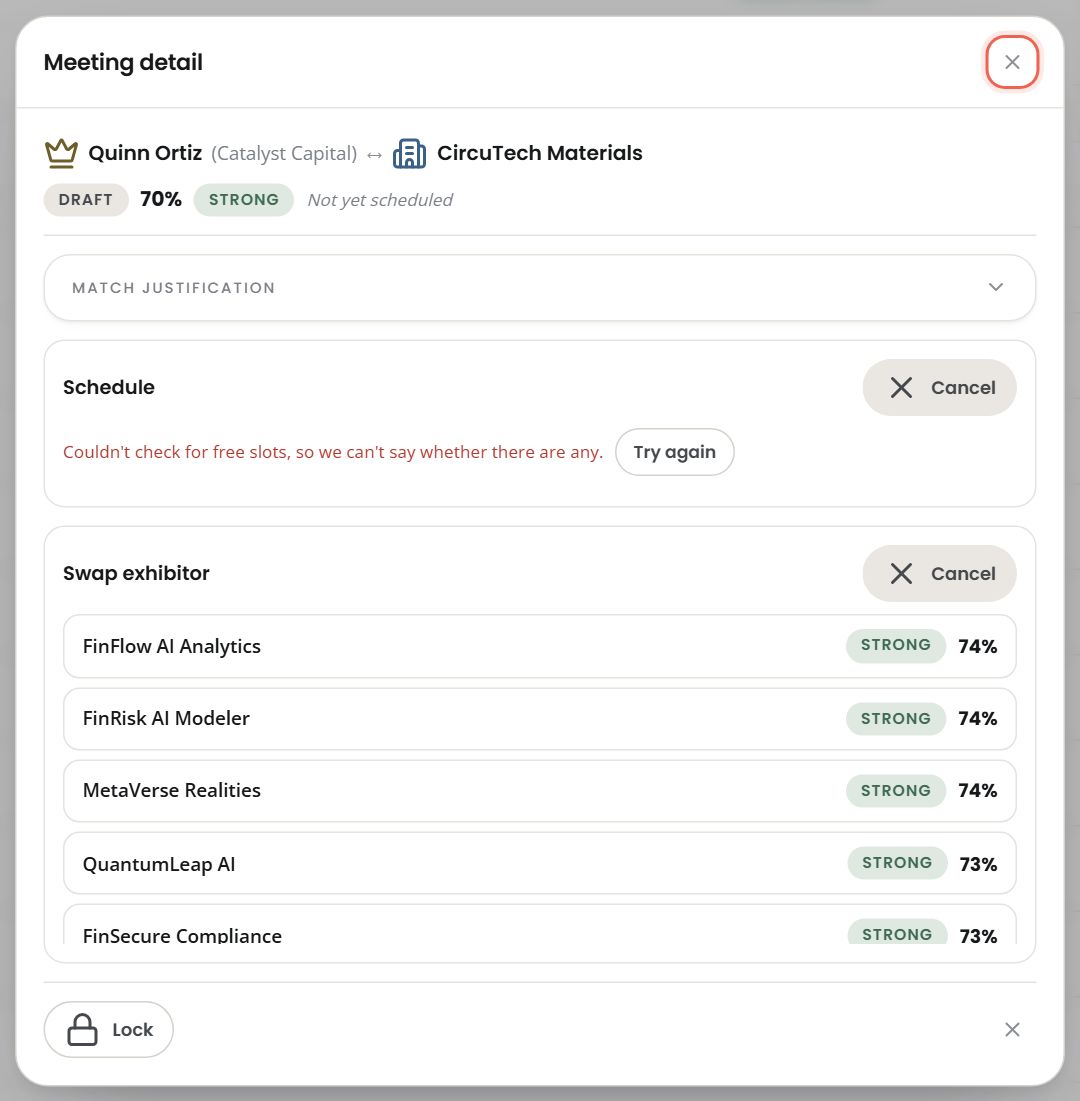
Swap hosted buyer lists eligible buyers unranked (there is no "best buyer for an exhibitor" score):
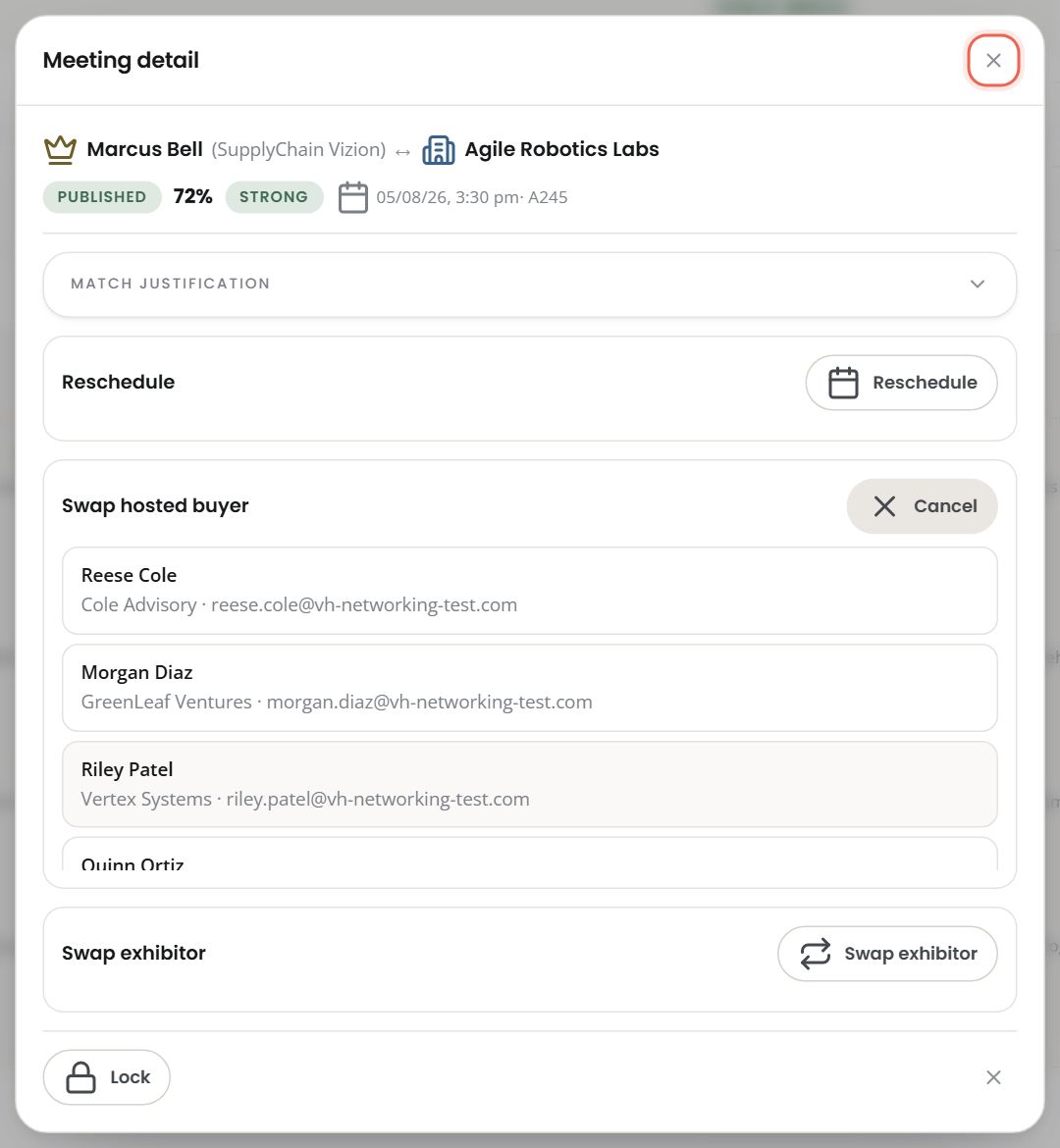
A swap cancels the old meeting and creates a new one at the same time and place. The dialog closes when it succeeds — the meeting you were looking at genuinely no longer exists, and the new one is in the list behind you.
Either can come back with a Swap conflict — the new pairing would double-book somebody. Dismiss it and pick another candidate. You will also be stopped if the buyer you are swapping in is the confirmed rep for that same exhibitor: nobody can hold a meeting with their own stand.
Removing a meeting

The ✕ asks once. A removed meeting drops out of every count and view. Unlock first if it is locked. (Verified: removing one took the draft count from 23 to 22.)
An unscheduled meeting
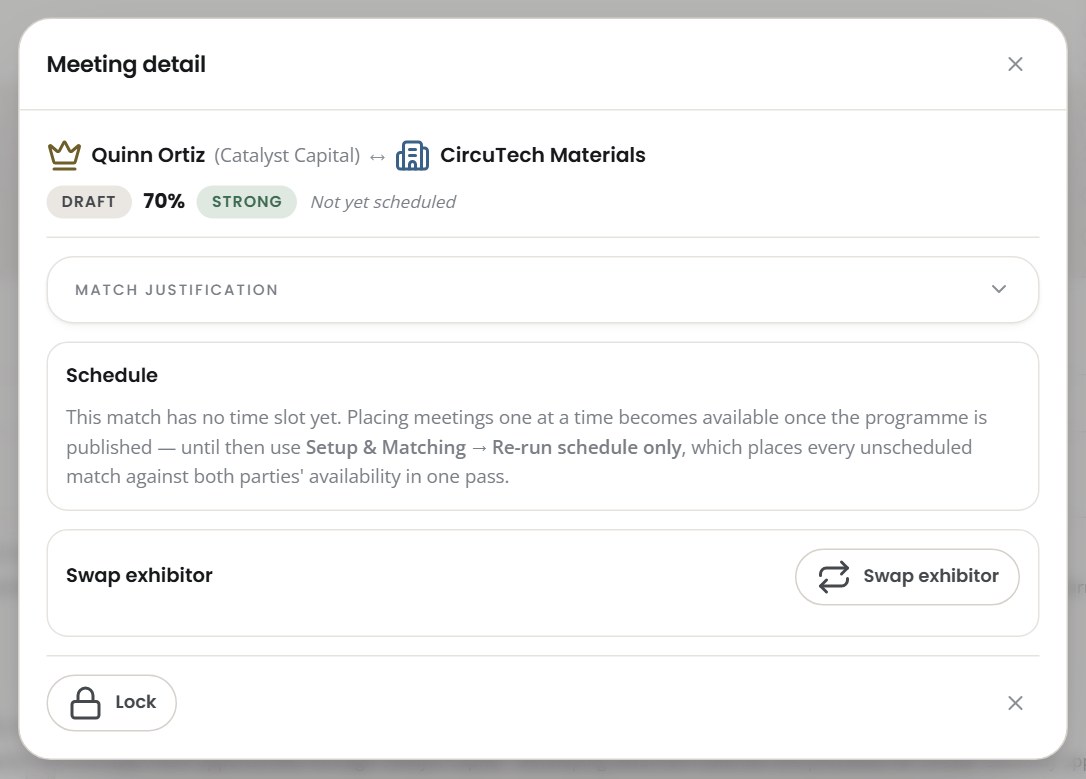
A meeting with no time yet shows a Schedule panel instead of Reschedule. Until the programme is published that panel has no button — it states that the meeting has no time and names the route that places it, because placing meetings one at a time is a published-programme operation. Use Step 2 → Re-run schedule only, which places every unscheduled meeting against both parties' availability in one pass.
Re-captured on 25 August 2026. Earlier versions of this guide showed a Schedule button here that always failed; it has been withdrawn, and the panel now carries the sentence above.
Publishing, re-publishing, un-publishing and scheduling a publish
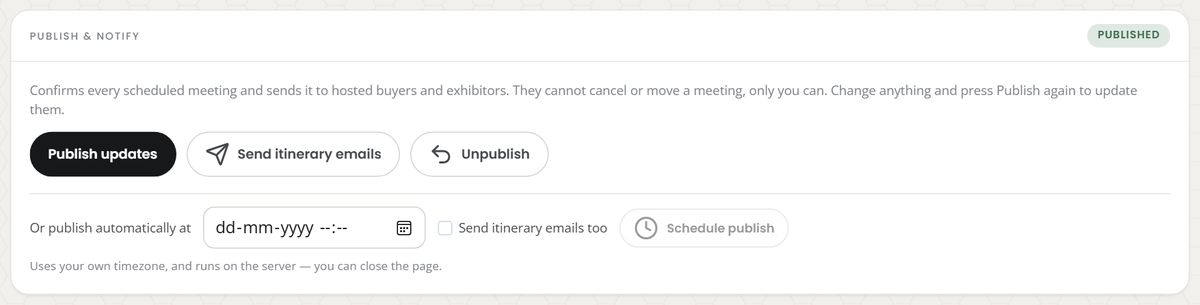
Publishing is the moment the schedule becomes real:
Confirms every scheduled meeting and sends it to hosted buyers and exhibitors. They cannot cancel or move a meeting, only you can. Change anything and press Publish again to update them.
1. Publishing the first time

If anyone is below their meeting minimum, you are stopped once and told who:
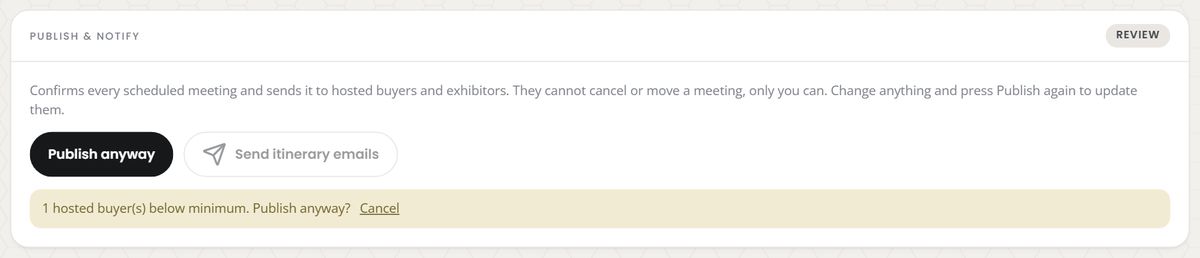
1 hosted buyer(s) below minimum. Publish anyway?
This is a warning, not a block — a programme where one buyer is one meeting short is often worth publishing anyway. Cancel goes back so you can run matching again first.
Every publish reports these numbers:

| Tile | Means |
|---|---|
| Published | Meetings published by this press |
| Already published | Meetings that were already live and were left alone |
| Skipped unscheduled | Meetings with no time and place. They are still there — schedule them, then publish again |
| Skipped no rep | Meetings whose exhibitor has no confirmed representative linked to an attendee — and only that |
| Failed — see below | Anything that failed for a different reason. Only appears when it is not zero, and the warnings underneath name each one |
Skipped no rep is the one that catches people out. A meeting needs a real person on the exhibitor's side to send it to. If the exhibitor has no confirmed rep, the meeting cannot be created — and the warnings list names every affected meeting:
That tile now counts only missing reps. It used to absorb unrelated failures as well, which sent people to fix exhibitor reps that were never the problem; those now land in Failed.
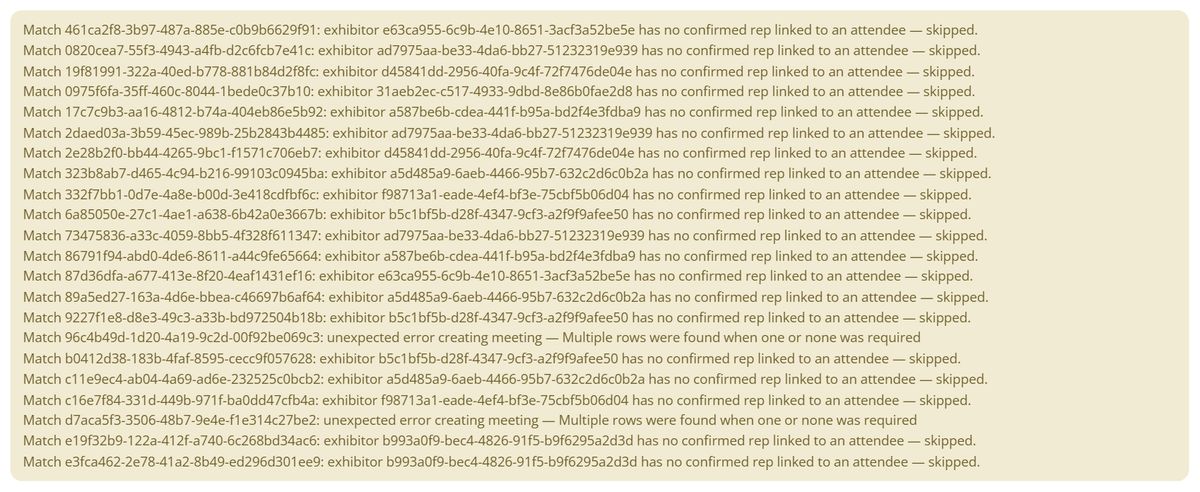
The fix is upstream: link a rep to each exhibitor (Exhibitor Leads / Data Hub), then publish again.
If publishing fails, you get the reason and no result grid. A failed publish will never render as four zeroes that look like a programme with nothing in it.
2. Re-publishing after a change
Publishing is repeatable and additive. Once the programme is published, the button reads Publish updates:
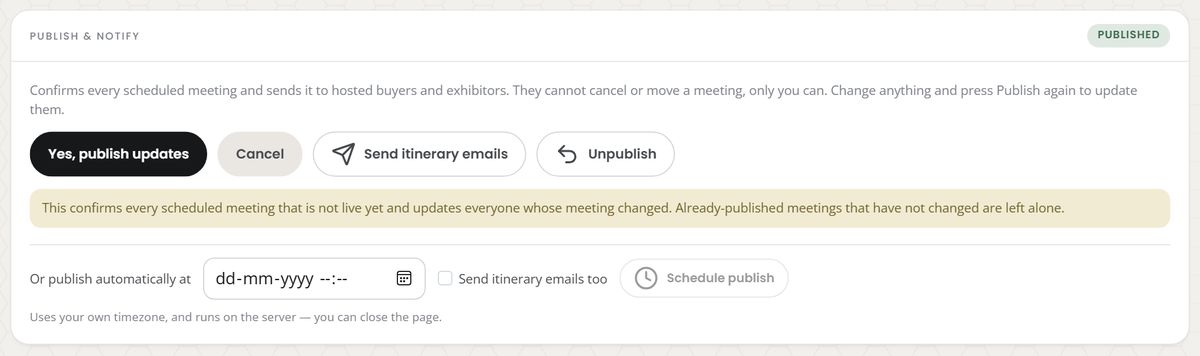
This confirms every scheduled meeting that is not live yet and updates everyone whose meeting changed. Already-published meetings that have not changed are left alone.
This is how you get a new meeting out to people after the first publish — you add a participant, run matching again, and press Publish updates. Meetings already live are counted, not duplicated:
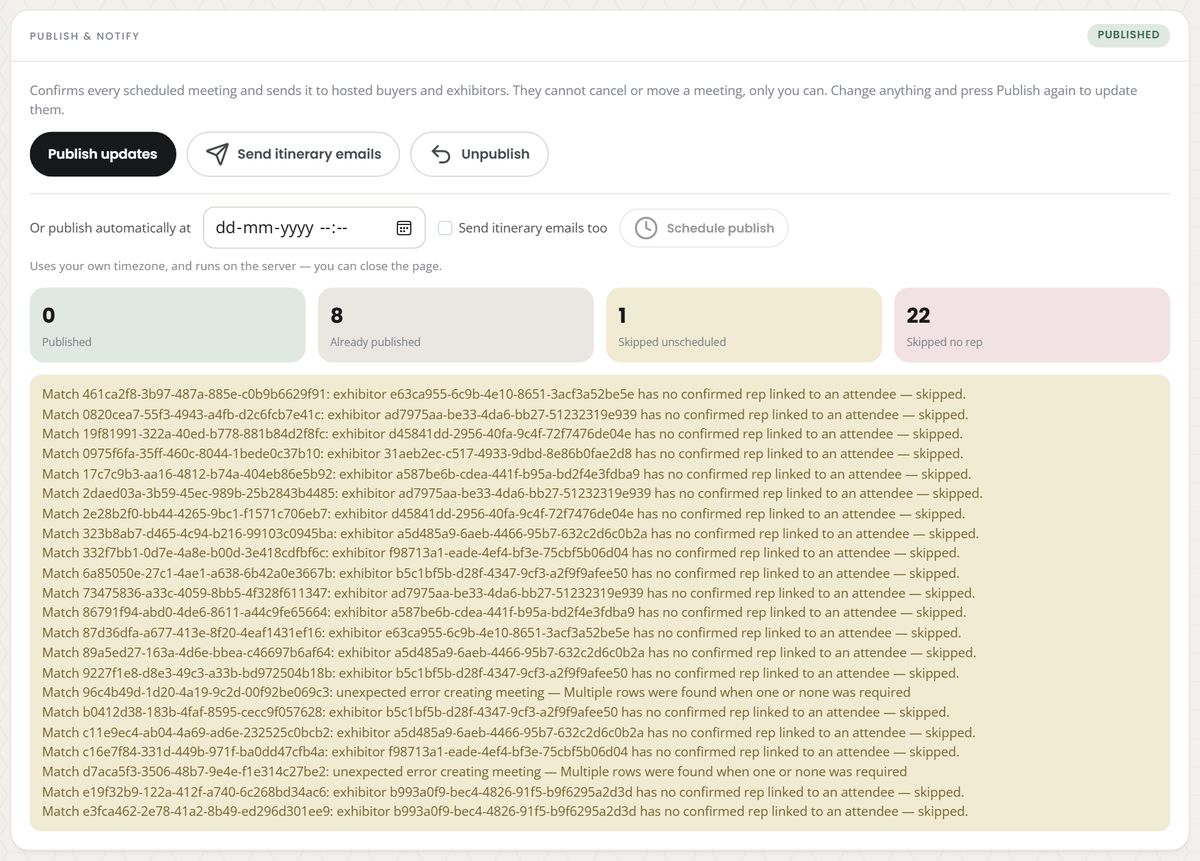
0 Published · 8 Already published · 1 Skipped unscheduled · 22 Skipped no rep
Nothing new to publish in that example — which is exactly what it should say. Publishing twice by accident cannot double-book anybody.
3. Un-publishing — the way back
Pressed Publish too early? Unpublish withdraws the whole schedule.
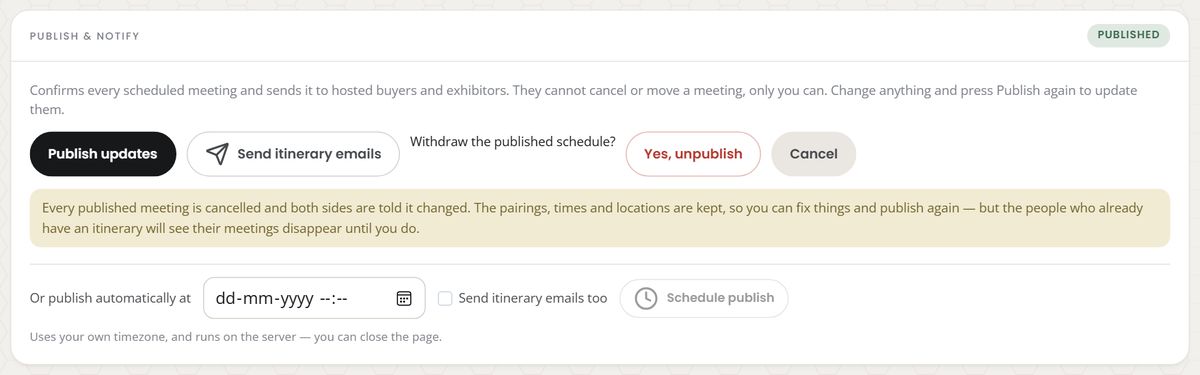
Every published meeting is cancelled and both sides are told it changed. The pairings, times and locations are kept, so you can fix things and publish again — but the people who already have an itinerary will see their meetings disappear until you do.
It reports what it did:
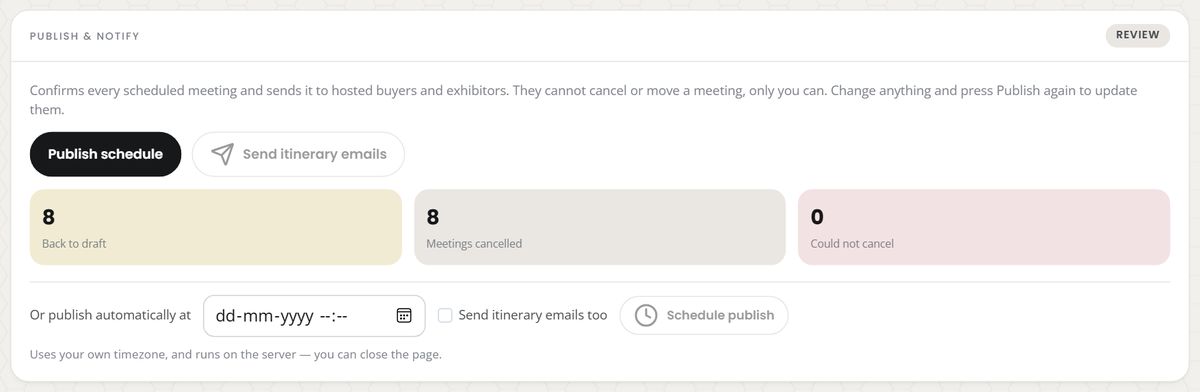
| Tile | Means |
|---|---|
| Back to draft | Pairings returned to draft — they keep their time and place |
| Meetings cancelled | Live meetings withdrawn (both parties are notified) |
| Could not cancel | Meetings that could not be withdrawn — usually already cancelled by a participant. The pairing is still returned to draft, so the screen never claims a meeting is live when it is not |
The programme goes back to review, and the publish button reverts to Publish schedule. Because nothing was destroyed, the recovery is simply: unpublish → fix → publish again, and the same meetings come back at the same times. (Verified end to end: 8 back to draft, 8 cancelled, 0 failures — then a later publish re-created all 8.)
⚠️ Un-publishing is visible to participants. It is not an "undo" in the private sense — everyone holding an itinerary is told their meeting changed, and their meeting disappears until you publish again. Use it when the schedule is genuinely wrong, not to tidy up.
4. Publishing automatically at a chosen time
You do not have to be at your desk for the moment the schedule should go live.

Pick a date and time, optionally tick Send itinerary emails too, and press Schedule publish. The panel then states the commitment in your own words and your own timezone:

Publishes automatically on Monday, 24 August 2026 at 12:52 pm · and sends itinerary emails
Things worth knowing:
-
It runs on the server. You can close the page, sign out, go to bed. (Verified: a publish scheduled for 12:54 fired at 12:54 with the browser idle, published 8 meetings and recorded the full result.)
-
Anything you change before then is included — it publishes the schedule as it stands at that moment, not as it stood when you set the timer.
-
One schedule per programme. Setting a new time replaces the old one rather than stacking a second publish.
-
A time in the past is refused, with the reason:

-
It does not ask about the below-minimum warning. You accepted that when you scheduled it. If some participants are short of their minimum, it will publish anyway.
-
Cancel scheduled publish drops it. And un-publishing also cancels any pending scheduled publish — otherwise an unpublish could be silently undone an hour later.
-
Once it has fired, the panel goes back to offering a fresh schedule rather than advertising a publish that has already happened:
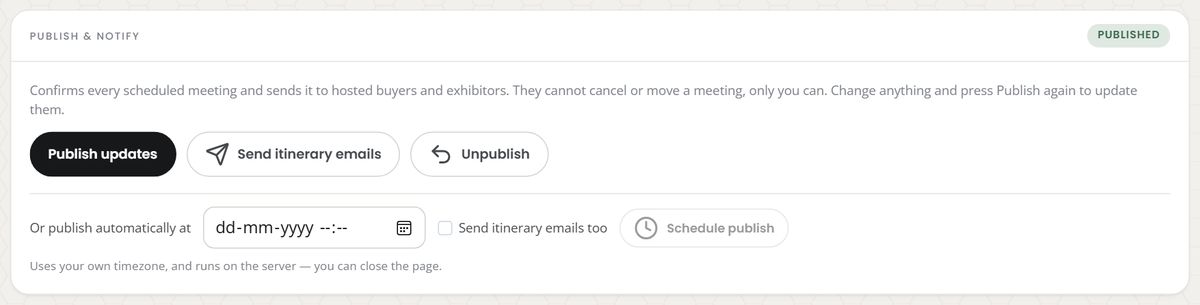
You can also schedule from review, before you have ever published:

If the panel cannot check whether something is scheduled, it says so rather than showing you an empty form — "Couldn't check whether a publish is scheduled — reload to try again. If one was set, it will still run."
5. Sending itineraries
Send itinerary emails is disabled until the programme is published. It sends each participant their own schedule, and reports:

| Tile | Means |
|---|---|
| Recipients | People it tried to reach |
| Sent | Delivered to the mail provider |
| Failed | Rejected — usually a missing or bad address |
If the send fails entirely, you are told so. A failure never shows up as "0 recipients · 0 sent", which would be indistinguishable from a programme with nobody to email.
If Failed is not zero, check those participants' email addresses in Step 1 — a missing email also raises the amber triangle on their row.
Gotchas — and what not to do
The things that actually go wrong, in the order you are likely to hit them.
Before you match
| ❌ Don't | ✅ Do instead | Why |
|---|---|---|
| Run matching before setting schedule days and meeting locations | Fill both in Step 2 first | With no days or locations there is no grid, so every match comes back unscheduled and you have to run it all again |
| Add exhibitor admins or team members as hosted buyers | Leave the pool as it is | It puts a seller inside your buyer programme. If you genuinely need one, use Show exhibitor-role attendees deliberately |
| Assume a CSV import sets somebody's hosted-buyer role | Change roles in Data Hub | The import only enrols. This is on purpose, so an upload can't re-label your attendees |
| Set a per-person minimum above their maximum | Check the amber triangle on the row | Nothing blocks it, and the matcher then can't satisfy them |
| Add availability windows before adding event days | Add days first | The window builder is disabled without them, and a window with no day can't be stored |
| Leave a settings number blank to mean "no limit" | Type a number; use a blank per-participant override for "no opinion" | A blank programme-wide field is refused, and nothing at all is saved |
While matching and scheduling
| ❌ Don't | ✅ Do instead | Why |
|---|---|---|
| Press Re-run matching repeatedly while a run is going | Wait for the result line | Each run is a full re-match; overlapping runs waste time and make the numbers hard to read |
| Panic when a run passes 60 seconds | Read the message and reload later | It says "still running" — it has not failed |
| Read a matching result line as a live status | Check Last matched in the Step 1 rail | The line describes the run that just finished |
| Change locations or days and then re-run matching | Use Re-run schedule only | It re-places without re-matching, so you keep the pairings you already reviewed |
| Set a walking buffer so large the grid starves | Watch Unscheduled and Buffer/avail blocked | Duration + buffer decides how many meetings a person can physically hold |
| Trust a screen that shows a rose "Some of this programme could not be loaded" strip | Press Try again first | Counts, rosters and the schedule are unverified in that state. Do not run matching or publish from it |
Around publishing
| ❌ Don't | ✅ Do instead | Why |
|---|---|---|
| Treat Unpublish as a private undo | Only unpublish when the schedule is genuinely wrong | Everybody holding an itinerary is told it changed, and their meetings vanish until you publish again |
| Publish, then wonder why a new meeting never reached anyone | Press Publish updates after any change | The first publish only covers what existed then |
| Chase Skipped no rep inside Hosted Buyers | Link a confirmed rep to the exhibitor (Exhibitor Leads / Data Hub), then publish again | A meeting needs a real person on the exhibitor side to send it to |
| Publish and immediately schedule an automatic publish for the same schedule | Pick one | The scheduled run would just report everything already published |
| Expect a scheduled publish to ask about below-minimum participants | Decide before you schedule it | Nobody is there to answer, so it publishes anyway |
| Assume a scheduled publish survives an unpublish | Re-schedule it if you still want it | Un-publishing cancels any pending scheduled publish on purpose |
| Assume a hand-typed Reschedule time is UTC | Type the local time you actually mean | The field is read in your own timezone — the same one every time on the screen is displayed in |
| Use Force anyway to clear a conflict quickly | Move one of the two meetings properly | It creates a genuine double-booking, and the grid will show it in red for the rest of the event |
| Leave a red clash cell in the grid before publishing | Open it and move one meeting | Two people will arrive at the same table at the same time |
Roles, removals and locks
| ❌ Don't | ✅ Do instead | Why |
|---|---|---|
| Use Remove and revoke for somebody your registration system still calls a hosted buyer | Use Keep the hosted-buyer role | Revoking is recorded so the sync won't re-flag them — which is right when they dropped out, and wrong when they didn't |
| Clear the pills in the roster picker to "start again" | Untick individuals | A save that removes people deletes their draft meetings, locked ones included. You will be warned, but the warning is easy to click past |
| Rely on a lock to protect a meeting from everything | Lock protects it from matching and scheduling only | Removing either participant from the programme overrides the lock |
| Miss the ~5-second Undo on a removal | Read the confirmation before it fades | It names the cascade, and it is the only undo there is |
Every "if" in one table
| If… | Then… |
|---|---|
| No programme exists | Step 1 shows Create programme. Everything else is disabled |
| The page says "no programme" but you know there is one | Reload before pressing Create — a connection failure looks the same as an empty programme |
| Some of the programme could not be loaded | A rose Incomplete strip appears above the steps with Try again. Treat counts, rosters and the schedule as unverified, and do not run matching or publish from that state |
| A roster is empty | "No hosted buyers yet" with a pointer to Import CSV / Add / edit |
| Somebody is missing from the buyer picker | Exhibitor admins and members are hidden. Press Show exhibitor-role attendees |
| Your event has 200+ attendees or exhibitors | The picker lists 200 rows. Use search instead of scrolling |
| A roster save would remove people | A confirm dialog states how many leave and how many draft meetings go with them. Locks are overridden; published meetings are kept |
| A roster save only adds people | It saves straight through — no confirm |
| A CSV row's email matches nobody | not found in the unmatched list |
| A CSV row's email is malformed or blank | invalid email |
| Two exhibitors share the CSV's company name | ambiguous — use the external_id column |
| More than 8 rows are unmatched | The first 8 are listed; Download CSV has them all |
| You import a CSV | People are enrolled. Nobody's hosted-buyer role is changed |
| You set a per-person min above their max | An amber triangle on the row: Min is above max |
| You add an availability window with no event days configured | Both buttons are disabled: "Add event days in Setup & matching → Programme settings" |
| An availability window is missing a start or end | It is skipped, and the message says so |
| You leave all availability windows empty | The participant is available for the whole programme |
| You remove a participant with scheduled meetings | The dialog says how many go. Published meetings are kept |
| You remove a participant | You choose: keep their hosted-buyer role, or revoke it. ~5s to Undo |
| A buyer is a confirmed rep of an exhibitor in the programme | Red shield on the row — they cannot be matched to their own booth, so part of their minimum is unreachable |
| A participant has no email or company | Amber triangle on the row |
| A participant has met their minimum | Green tick on the row (only after matching has run) |
| You remove a schedule day or a location and reload without saving | It comes back — nothing is written until you press Save |
| You blank a settings number and save | Refused, with the field named. Nothing is saved |
| Your session expires mid-save | You are sent to sign in. Nothing was saved |
| Matching has never run | The button reads Run matching |
| Matching has run before | It reads Re-run matching and asks to confirm. Locked and scheduled meetings survive |
| A matching run exceeds 60 seconds | "Matching is still running after 60s — leave this page open or reload" |
| Matching cannot start | The reason is shown. The previous run's numbers are not reused |
| The scheduler cannot place a meeting | It counts in Unscheduled. Add locations or hours, or loosen the buffer / windows, then Re-run schedule only |
| A meeting is blocked by a buffer or window | It counts in Buffer/avail blocked |
| You change locations or days after matching | Re-run schedule only — re-places without re-matching, never publishes |
| A meeting is locked | Matching and scheduling leave it alone; every edit in its dialog is disabled until you unlock |
| A locked participant is removed from the programme | The lock is overridden and their draft meetings go |
| A reschedule time collides with another published meeting | Conflict shown, with Force anyway / Cancel |
| You use Force anyway | A real double-booking is created — the grid then shows a red clash cell |
| A slot or candidate list cannot be loaded | "Couldn't load… — this is not the same as there being none", with Try again |
| A swap succeeds | The old meeting is cancelled, a new one is created at the same slot, and the dialog closes |
| A swap would double-book somebody | Swap conflict — dismiss and pick another |
| You swap in a buyer who is that exhibitor's own rep | Refused, saying so — nobody meets their own stand |
| A meeting has no time yet | Its dialog's Schedule panel names the route rather than offering a button, until the programme is published. Use Re-run schedule only |
| A filter leaves no rows | "No … match the current filters. Clear the search or filters above" |
| Two meetings share a slot and place | Red cell + a clash count above the grid. Open a red cell to move one |
| Anyone is below minimum when you publish | "N below minimum. Publish anyway?" — a warning, not a block |
| A meeting has no time and place at publish | Skipped unscheduled. Schedule it and publish again |
| An exhibitor has no confirmed rep at publish | Skipped no rep, and the meeting is named in the warnings. Link a rep, then publish again |
| Publishing fails | The reason is shown; no result grid of zeroes |
| The programme is already published | The button reads Publish updates, and Unpublish appears beside it |
| You press Publish updates with nothing new | It reports 0 published, N already published. Nothing is duplicated |
| You change a published schedule | Press Publish updates to send the change to the people affected |
| You publish by accident | Unpublish — every meeting is cancelled and both sides are notified, but times and places are kept so publishing again restores them |
| Unpublish cannot cancel one of the meetings | It counts in Could not cancel, and the pairing is still returned to draft |
| You schedule a publish for a past time | Refused: "that time has already passed — pick a time in the future, or press Publish now" |
| You schedule a publish twice | The second replaces the first. One pending publish per programme |
| A scheduled publish fires while you are away | It publishes on the server, records the full result, and the panel offers a fresh schedule again |
| A scheduled publish had Send itinerary emails too ticked but published nothing | No emails are sent, and the run says why |
| You unpublish with a scheduled publish pending | The scheduled publish is cancelled too |
| The scheduled-publish check itself fails | "Couldn't check whether a publish is scheduled" — not "nothing is scheduled" |
| You try to email before publishing | Send itinerary emails is disabled |
| An itinerary email bounces | It counts in Failed — check that participant's address |
| Sending fails entirely | You get the reason, not "0 sent" |
What the colours and words mean
| Signal | Meaning |
|---|---|
| Lilac | Hosted buyers |
| Sky / blue | Exhibitors, and published meetings on the grid |
| Sage / green | Good — at the minimum, published, a strong score |
| Sand / amber | Needs attention — below minimum, drafted, a middling score |
| Rose / red | A failure or a conflict — a clash, a load error, a self-match conflict |
draft | Programme status: nothing generated yet |
matching | A run is in progress |
review | Matches exist, nothing published — this is where you spend your review time |
published | The schedule is live with participants |
| Score % | How well the pair fits. Green ≥70, amber 40–69, red <40 |
strong / moderate / quota_fill | The matcher's confidence. quota_fill means "matched to fill a quota, not a content match" |
Every status colour on this screen is paired with a word — you never have to read colour alone.
